
Overview
GLIDR uses a permission-based system with two levels: organization-level and project-level permissions. Only Organization Owners and Admins can create projects.
Organization-Level Settings
By default, all organization members can access projects. To restrict access, navigate to Organization Settings > Customization > Project Default Settings and enable the toggle. This requires member invitations for all projects and can be undone at any time.
Project-Level Permissions
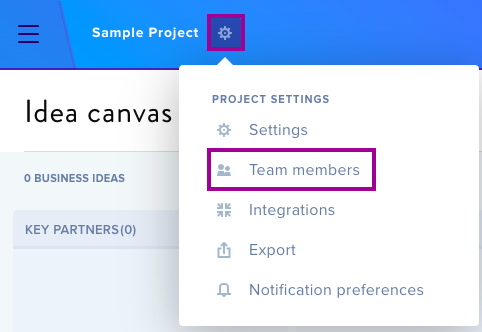
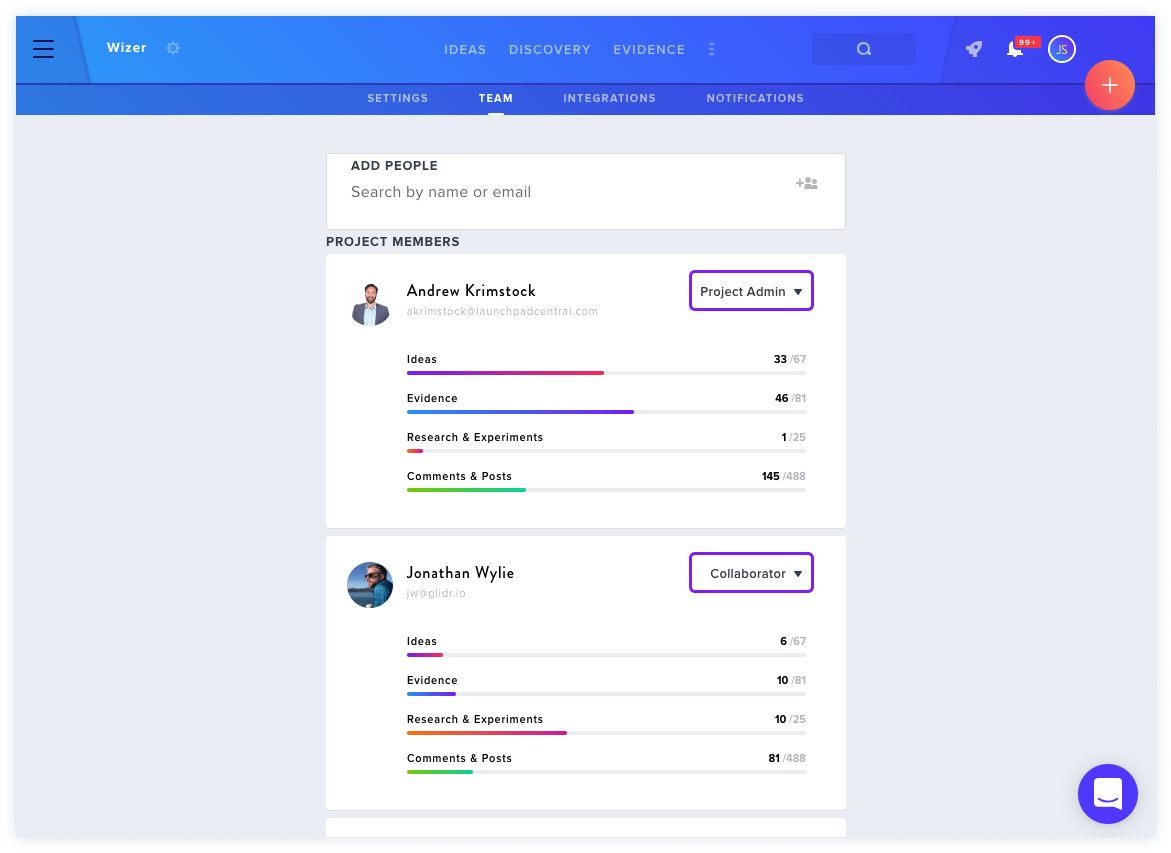
Access the Team Members section via the Settings icon next to the project name to manage permissions for individual team members.
Permission Levels
Project Admins can:
- Update project settings and visibility
- Upgrade/downgrade team member permissions
- Add and remove team members
- Integrate with Slack
- Update Canvas section labels
- Create, edit, delete, and connect cards
- Update the Dashboard
- Comment on all cards
Collaborators can:
- View all sections
- Create, edit, delete, and connect cards
- Update the Dashboard
- Comment on all cards
Limited Contributors can:
- Create, tag, and connect Evidence
- Submit evidence via Chrome Extension
- Edit their own Evidence
- View but not edit others' Evidence
- Comment on all cards
- View (not edit) Ideas, Evidence, and Discovery tasks
Viewers can:
- View all cards and sections
- Comment when enabled by Project Admin
Note: Cards include Posts, Evidence, Ideas, and Experiments.