
How and when to Validate and Invalidate Ideas.
The ability to see whether your Idea has been Validated or Invalidated is a key feature of GLIDR, letting you understand at a glance whether the Evidence you have collected supports your Idea or not.
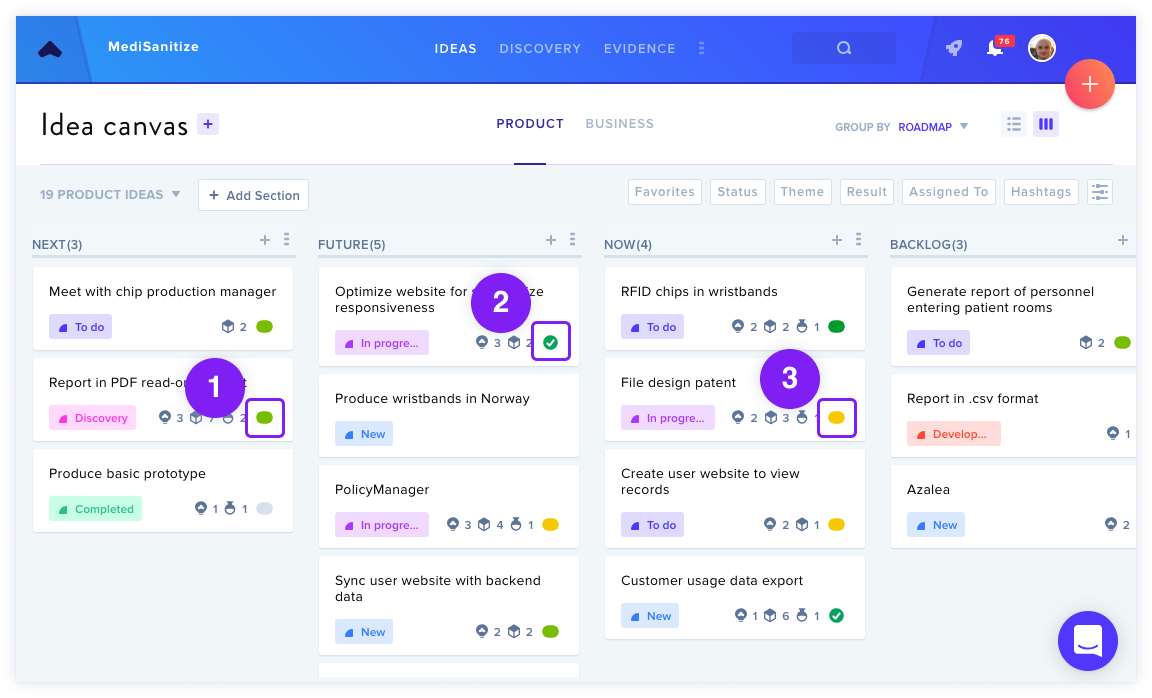
The Canvas displays:
- Trending Score: Leaning Confirming
- Validated
- Trending Score: Leaning Neutral
The colored icons next to ideas indicate their direction, while green checkmarks or red dashes show validation status.
Changing Results From Within an Idea
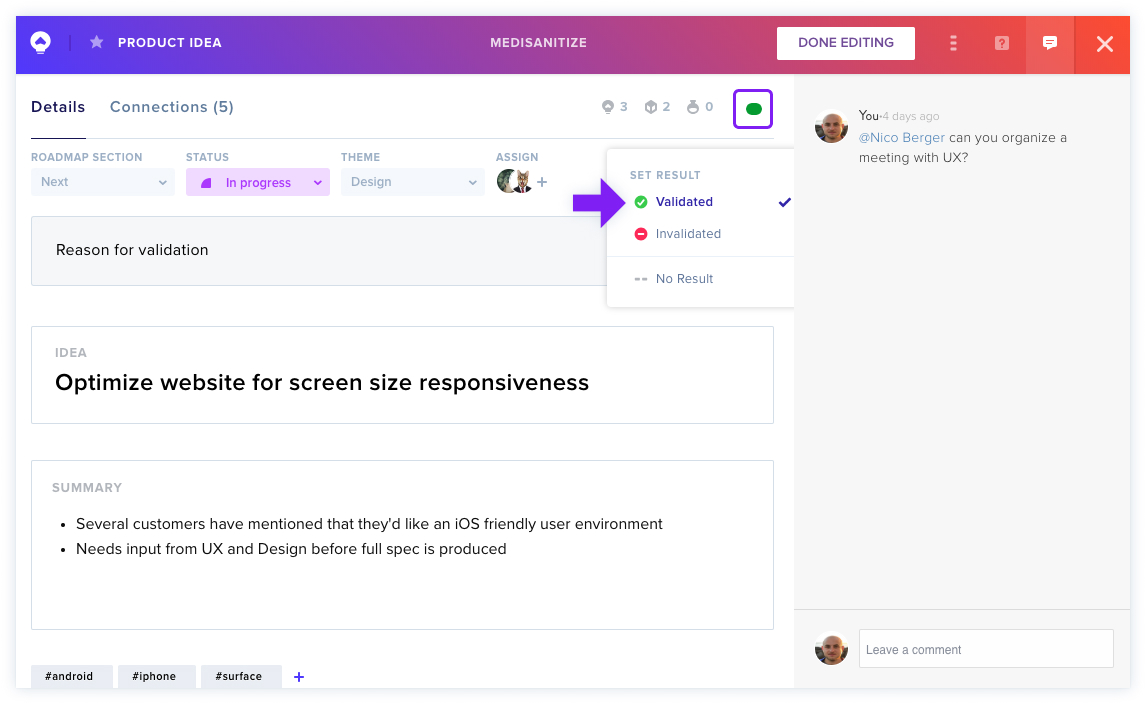
As you collect Evidence and link them to Ideas, the Idea trends as Confirming, Neutral, or Disconfirming — shown as small green, yellow, or red icons above the Results menu.
To change the Result, click the Results menu dropdown and select whether your Idea has been Validated or Invalidated. You can modify this at any time.
Changing Idea Results From The Canvas
List View provides a quick way to check Idea status and modify Results inline. The Canvas displays a mixture of Trending Scores and Results, indicating that more Evidence needs to be collected before Validating.
Learn more about the Trending Score.