
You can export and download individual ideas, experiments, evidence, the Project Dashboard, and the Portfolio Dashboard in PDF format.
For CSV exports, see Exporting Your Data in CSV.
Export Ideas
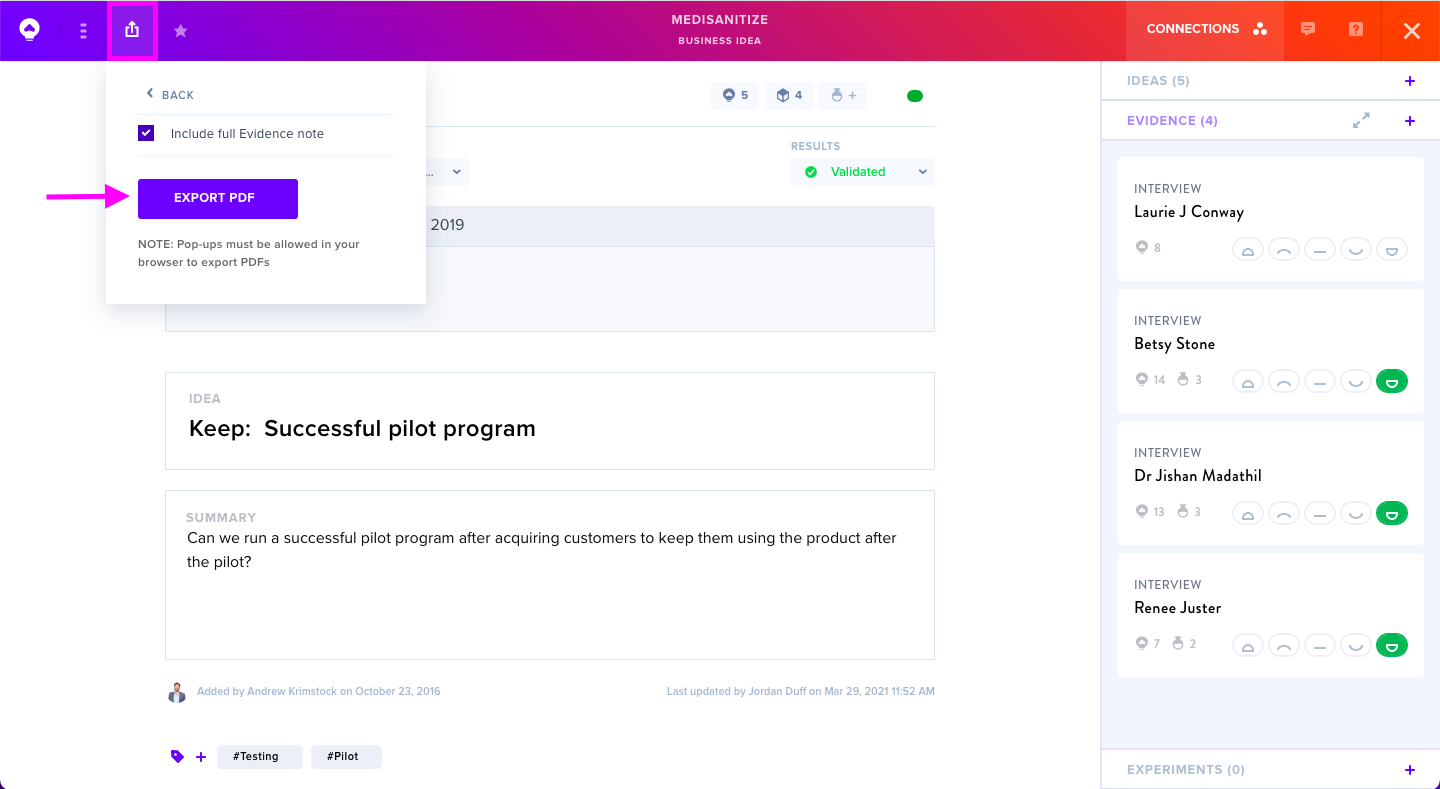
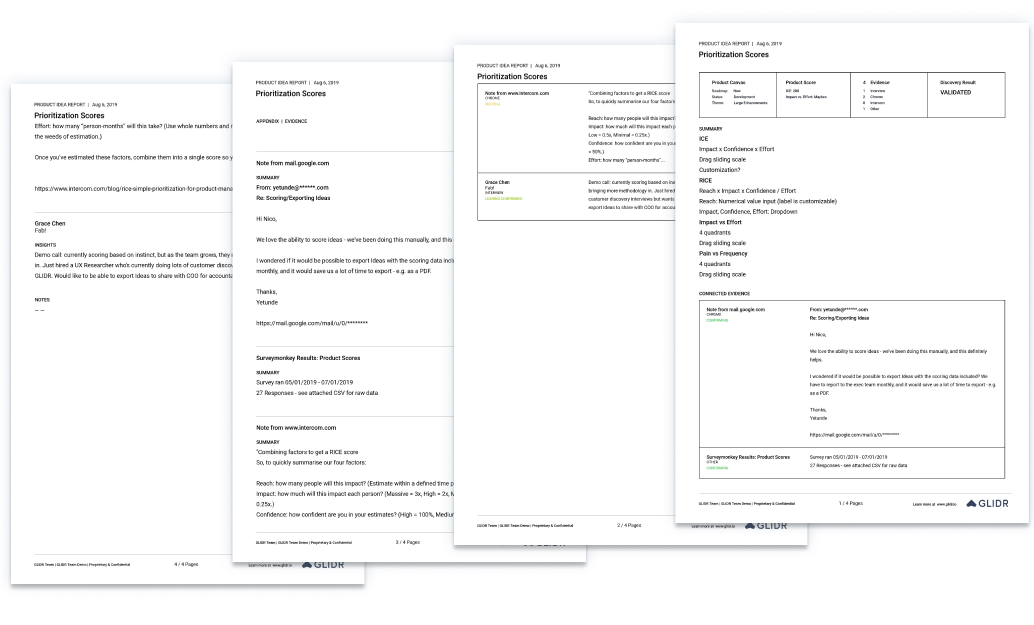
Open your desired idea and locate the Export icon in the upper left corner. To include associated evidence, select Include full Evidence note.
The system will display your idea with related evidence as a downloadable PDF.
Export Experiments
Click into the experiment you wish to export. In the upper navigation bar's left section, click the Export icon. Optionally check Include Full Evidence Note to attach connected data.
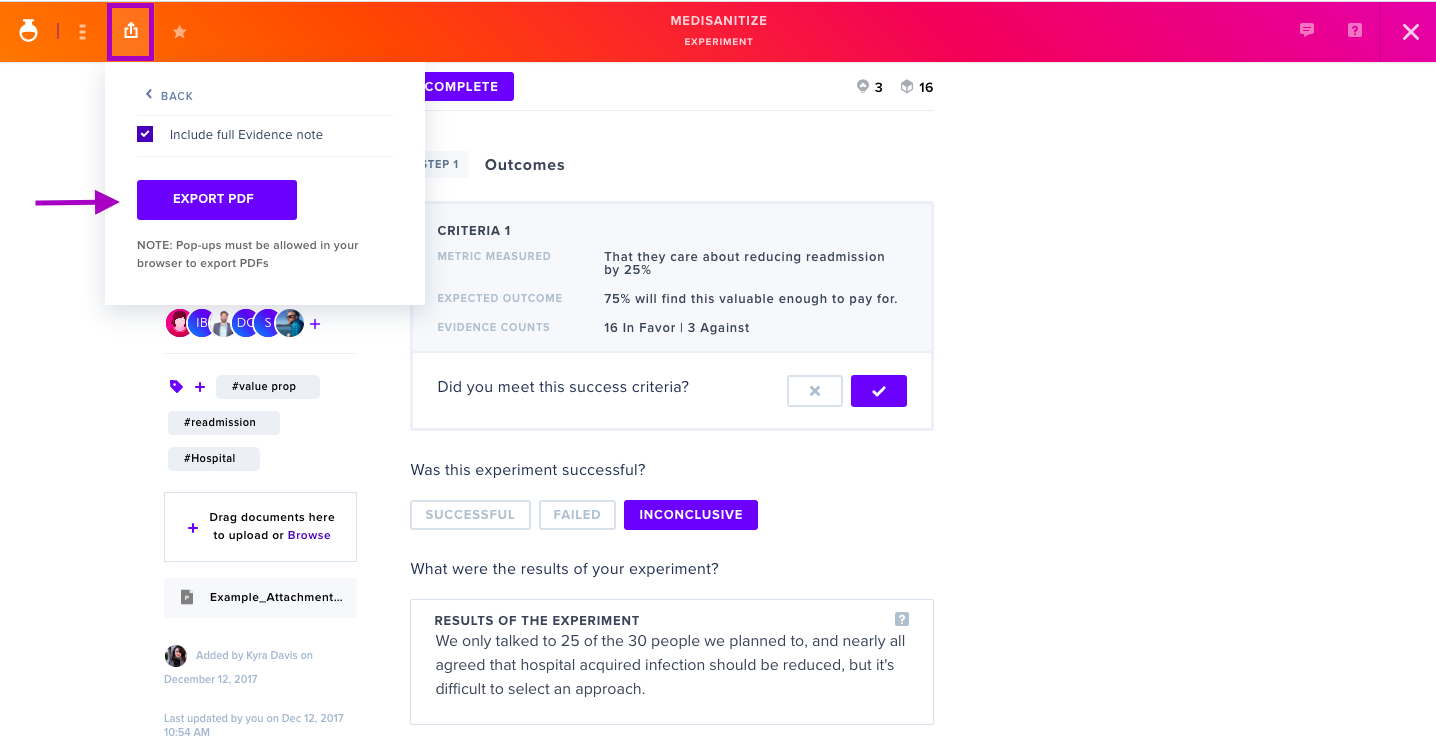
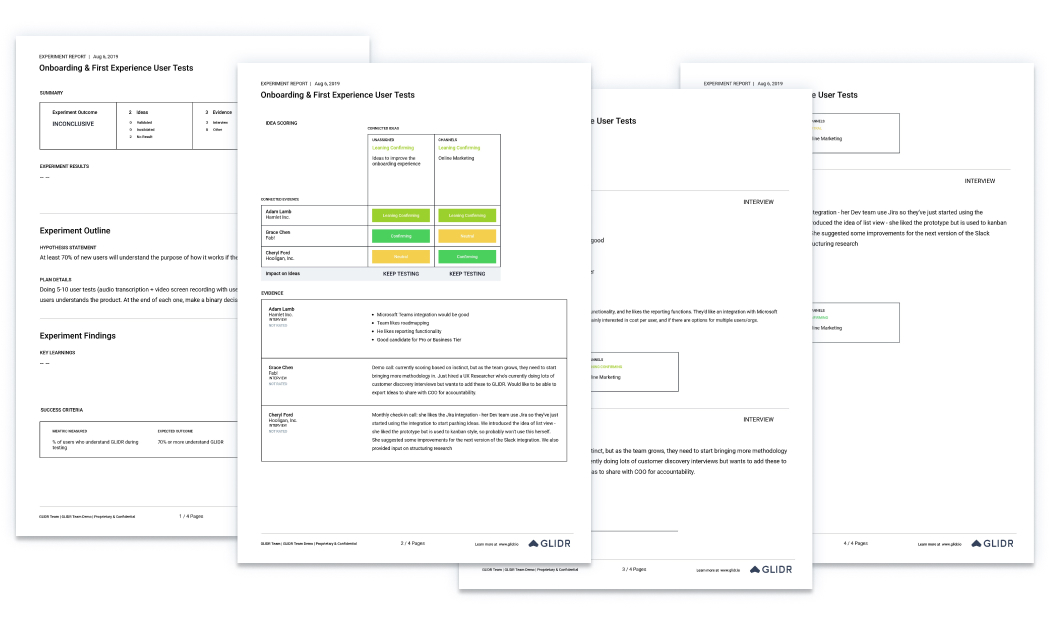
Your experiment downloads as a PDF.
Export Evidence
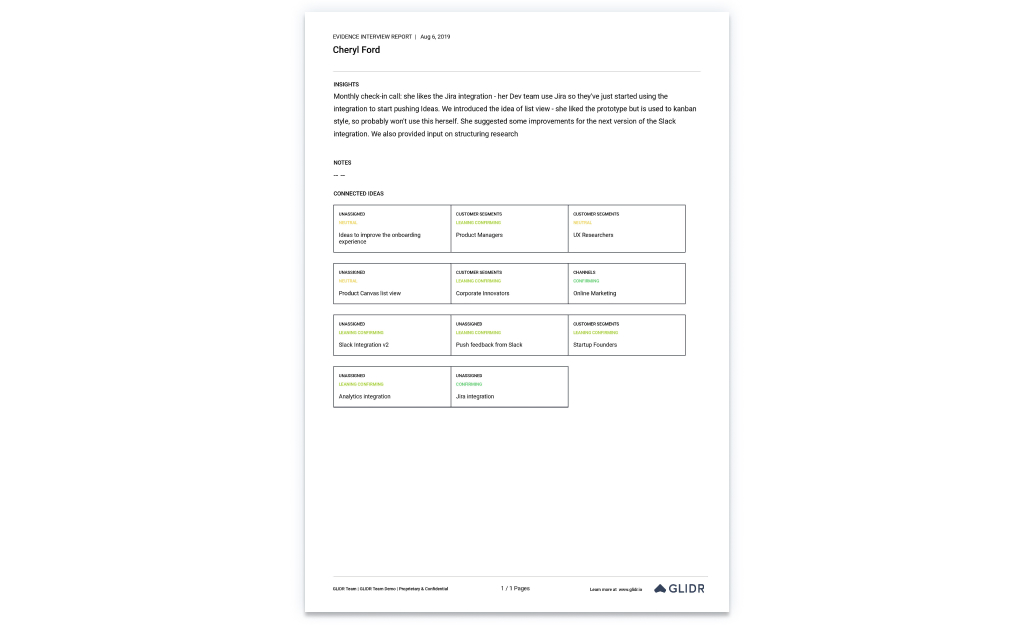
Navigate into the evidence piece you want to export. Click the Export icon in the upper navigation bar's left area and select Export PDF.
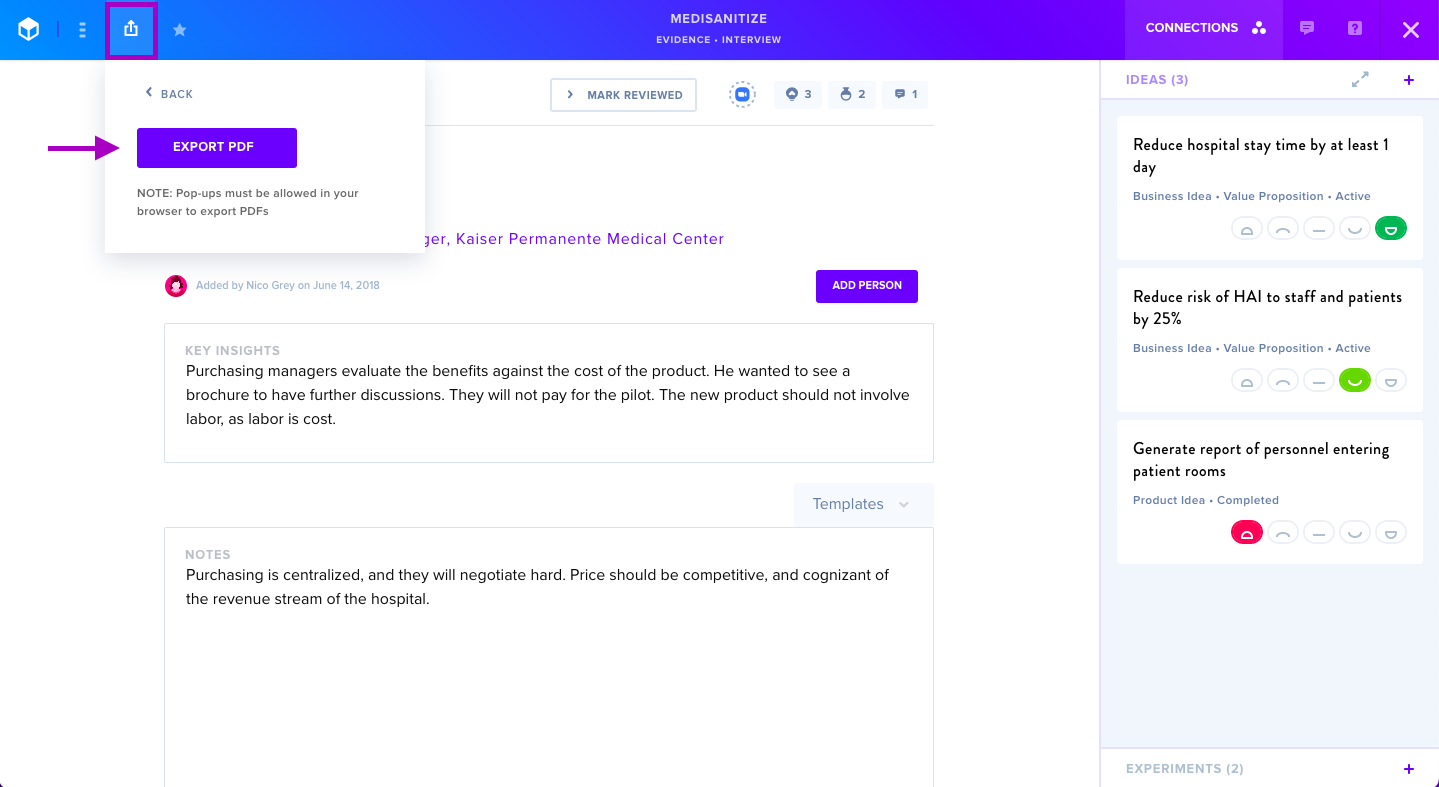
Your evidence downloads as a PDF.
Export Project Dashboard
Select all or specific dashboard sections, then click Export to download your customized PDF.
Export Portfolio Dashboard
Configure your export by choosing collections, projects, timeframes, filters, and data columns. The system recommends selecting your top 6 most important columns for optimal display in the PDF export.