
The feature location and function is the same for Garage, Business, and Enterprise tiers.
Garage, Business, Enterprise tiers
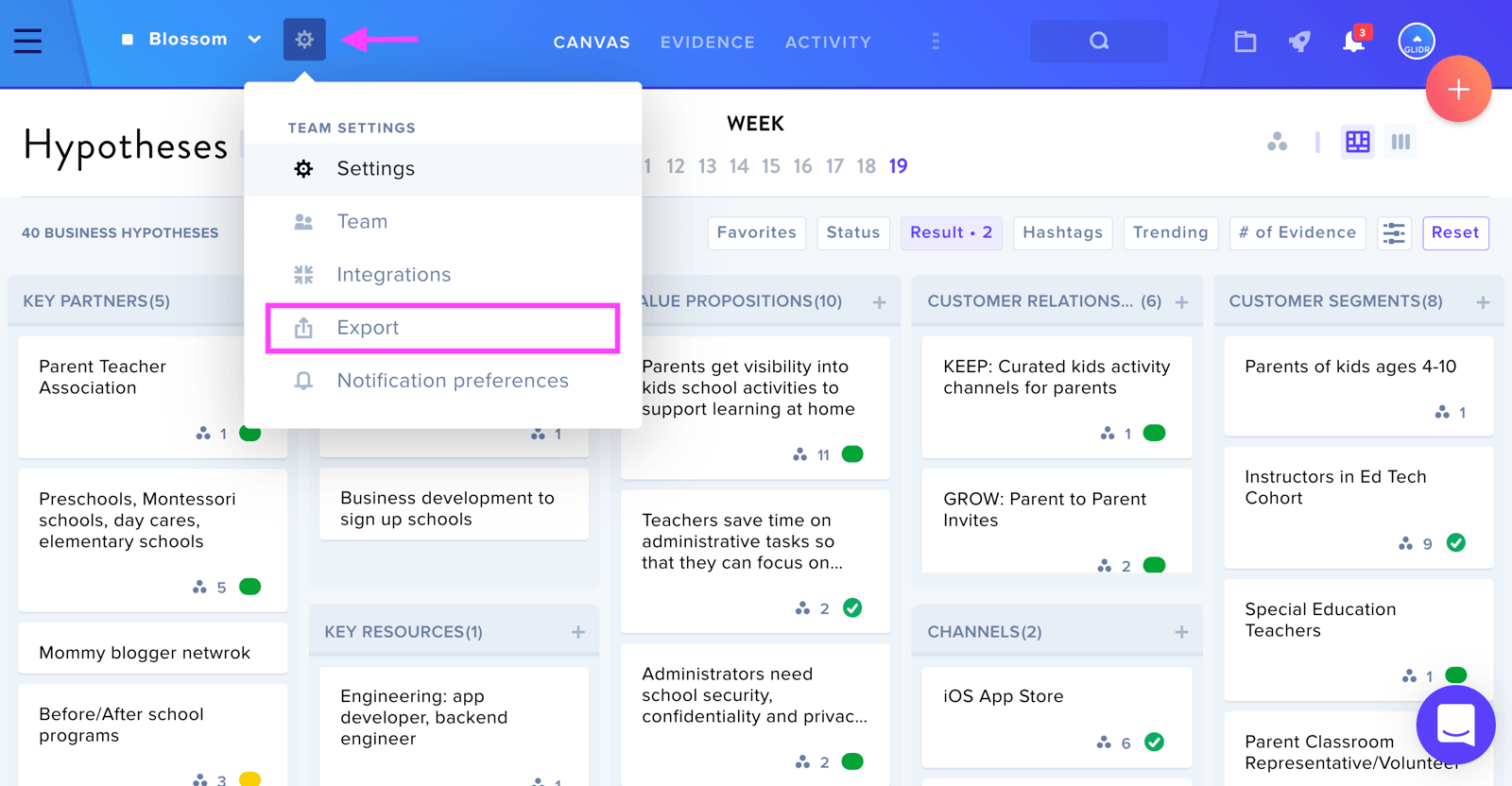
Navigate to Project Settings (wheel icon) and select Export from the dropdown menu. You will then be navigated to an Export page. Click the Export button and a CSV zip file should begin to download onto your computer.
Academic Users
During and after your cohort, Team Admins and Team Members can export their project data to a CSV file.
Note: Cohort Instructors and Mentors cannot export team data.
From the Team level, navigate to the Team Settings wheel icon next to the team name on the top left of the screen. Click on the icon and select Export.
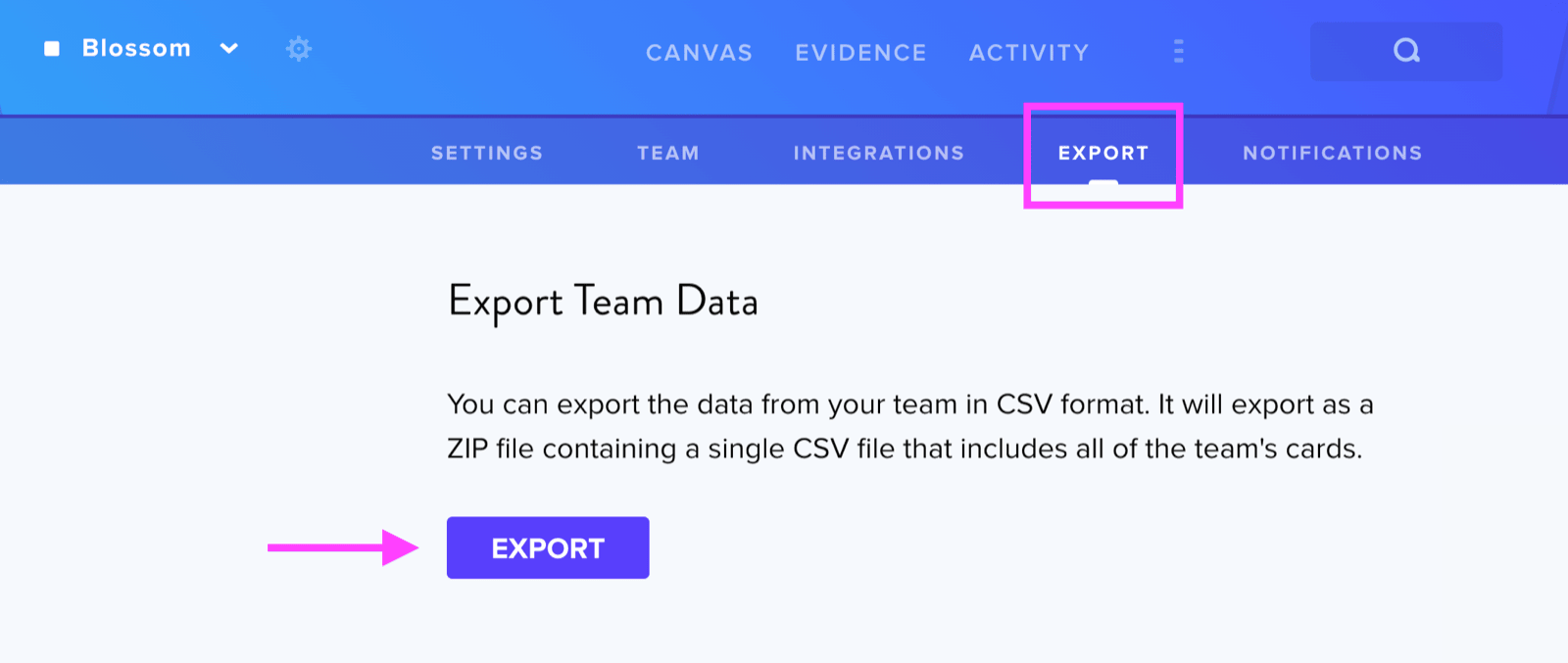
You will then be navigated to an Export page. Click the Export button and a CSV zip file should begin to download onto your computer.
Windows Users: If the file downloaded is empty, it may help to add GLIDR as a trusted site (opens in new tab). If the issue persists, please reach out to Customer Support.