When team members leave a class or program, administrators have options for removing them from cohorts or specific teams.
For Organization Owners
Organization Owners should locate the three-bar menu icon in the top left corner, click on their organization name, and select Team Management. From there, you can search for the member you wish to remove. By clicking the permission level next to the user's name, you can select Disabled to deactivate that person's access.
For Cohort Admins
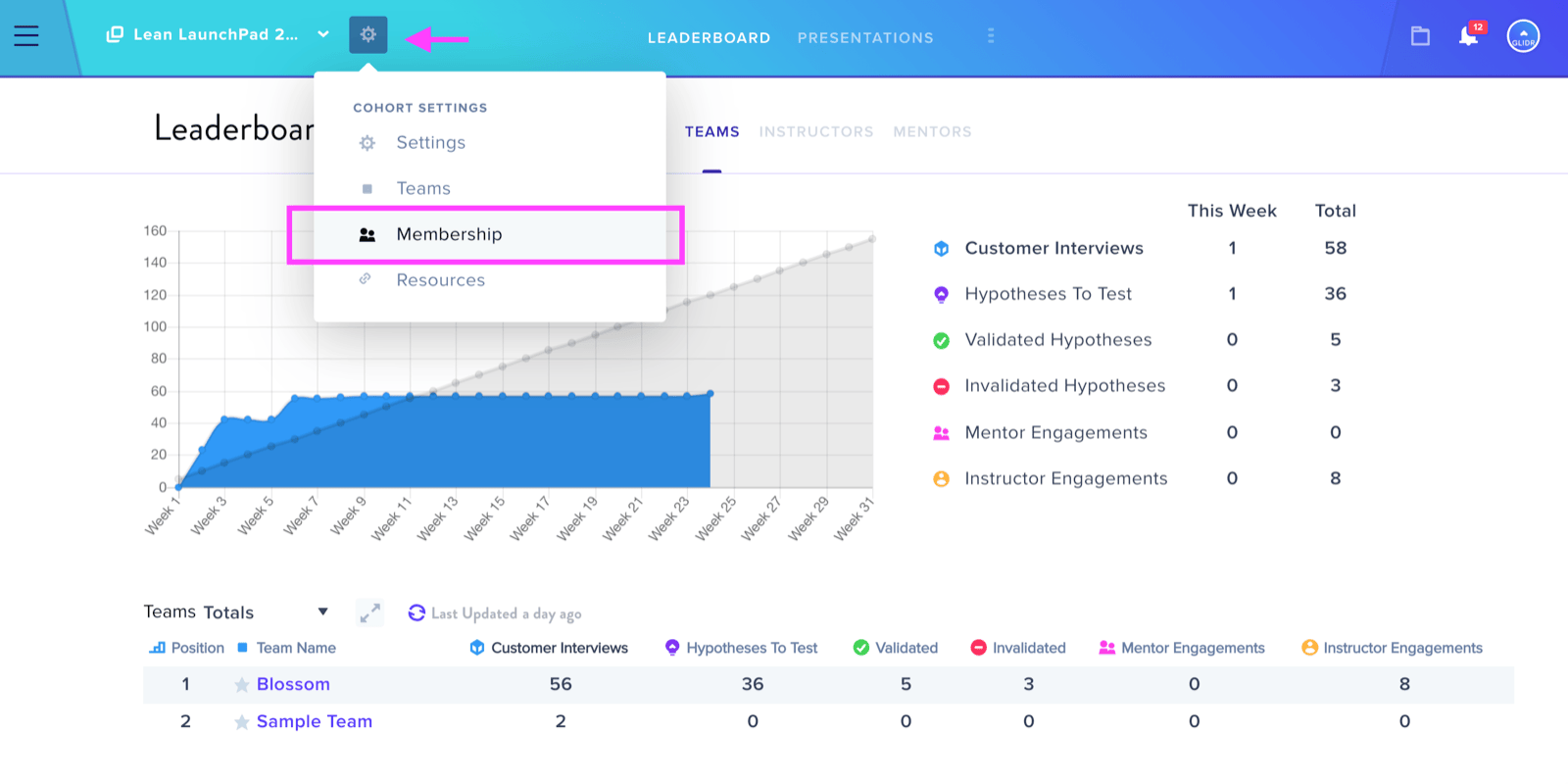
Cohort administrators have an alternative method for removing members from specific teams. Click the Cohort Settings icon near the cohort name and navigate to the Membership tab. Then locate the user's team, hover over their email address, and click the red X button that appears. A confirmation dialog will prompt you to click Remove Member to complete the action.