For LPG members. You must have Microsoft Excel or Numbers installed on your computer.
Steps to Invite Multiple Users
- Navigate to Cohort Settings. All teams must first be created under the Teams tab. New teams cannot be created in the CSV file.
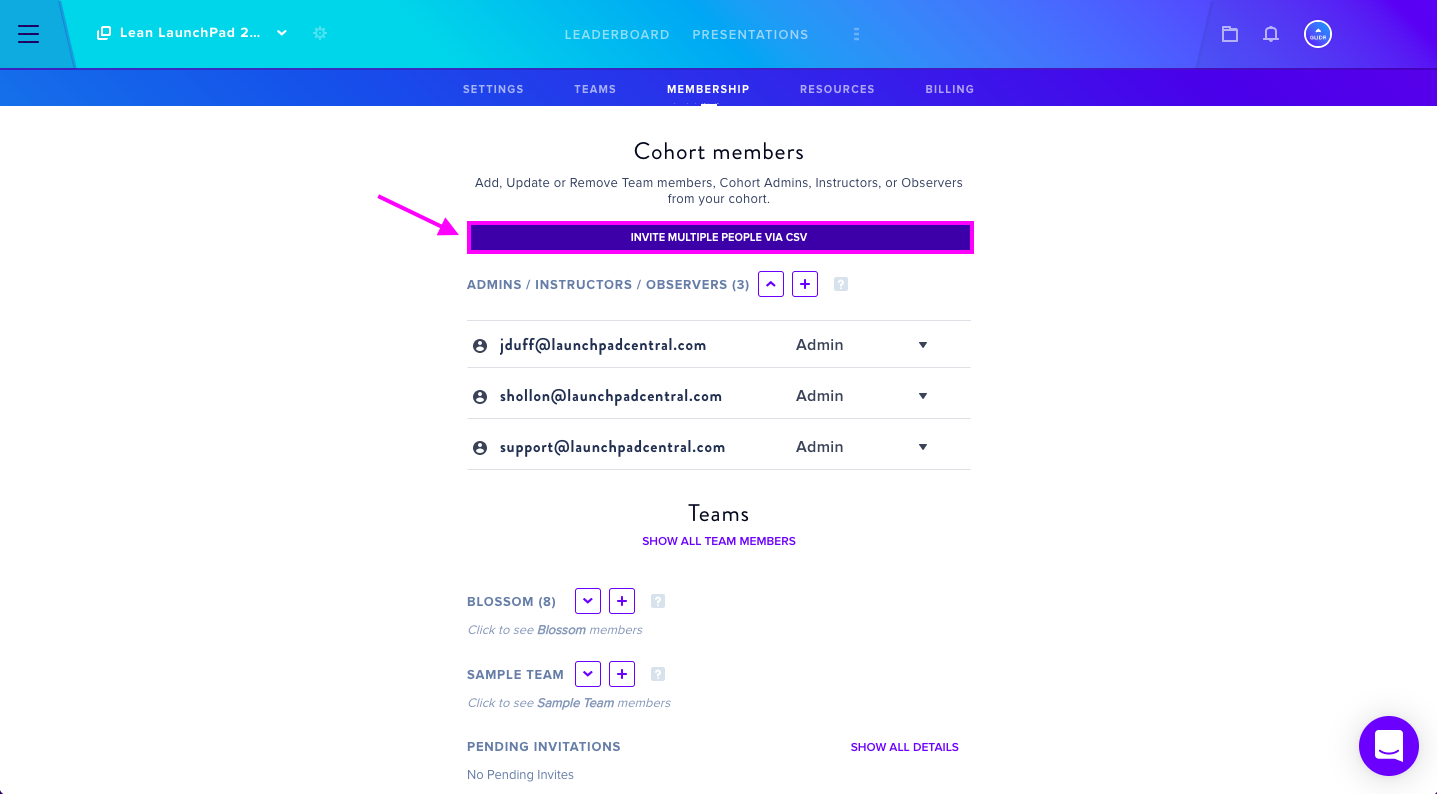
- Once all teams are created, navigate to the Membership tab.
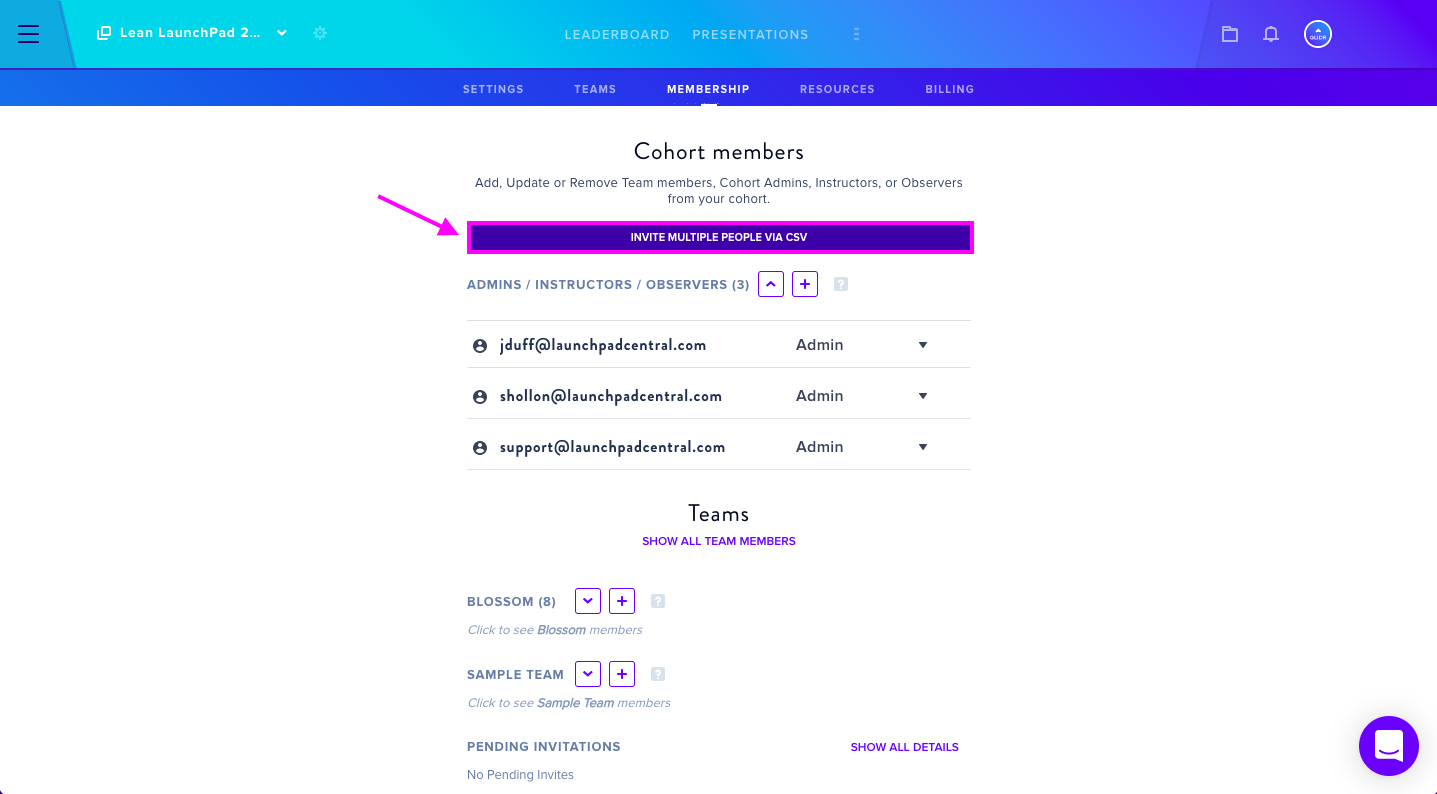
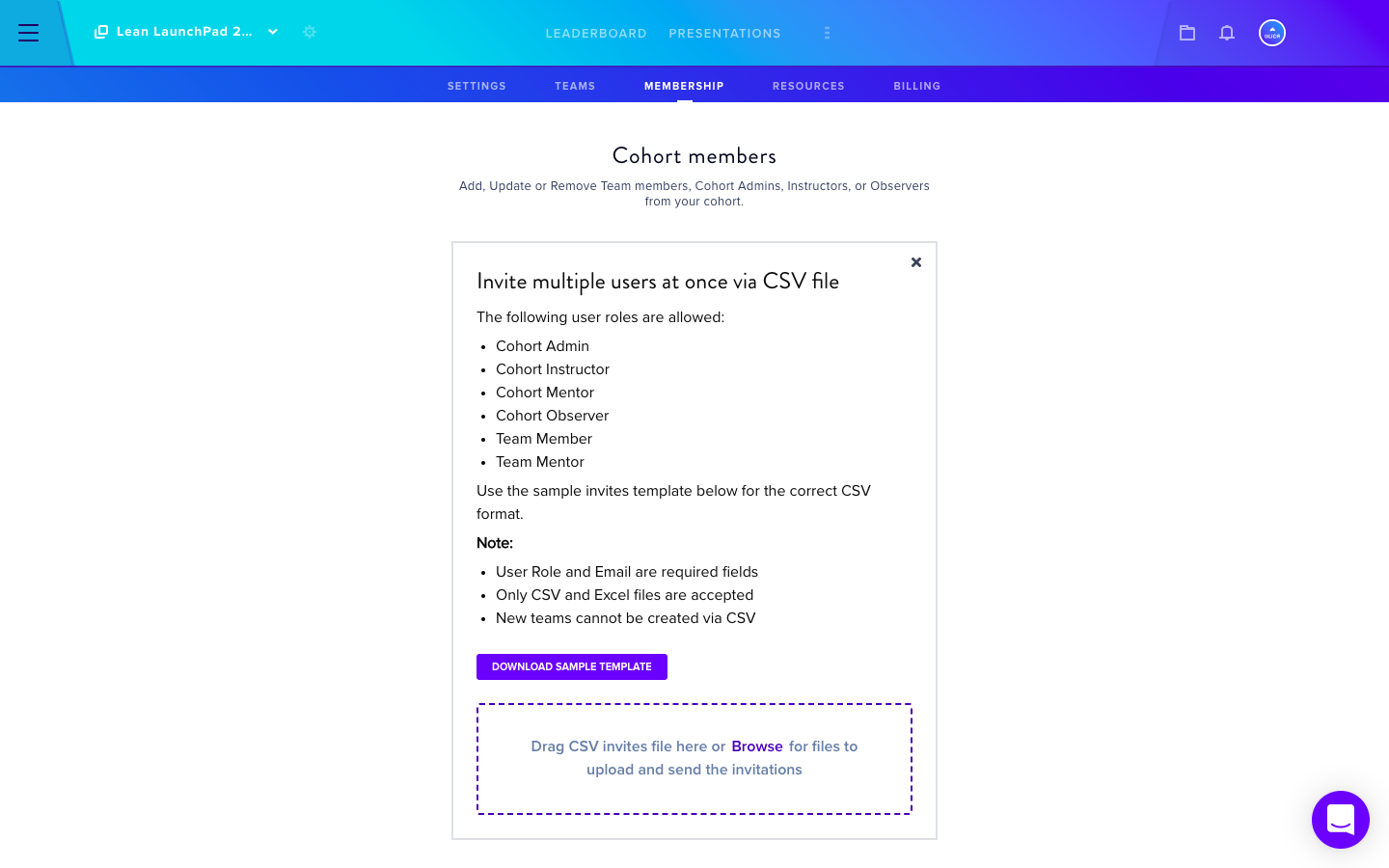
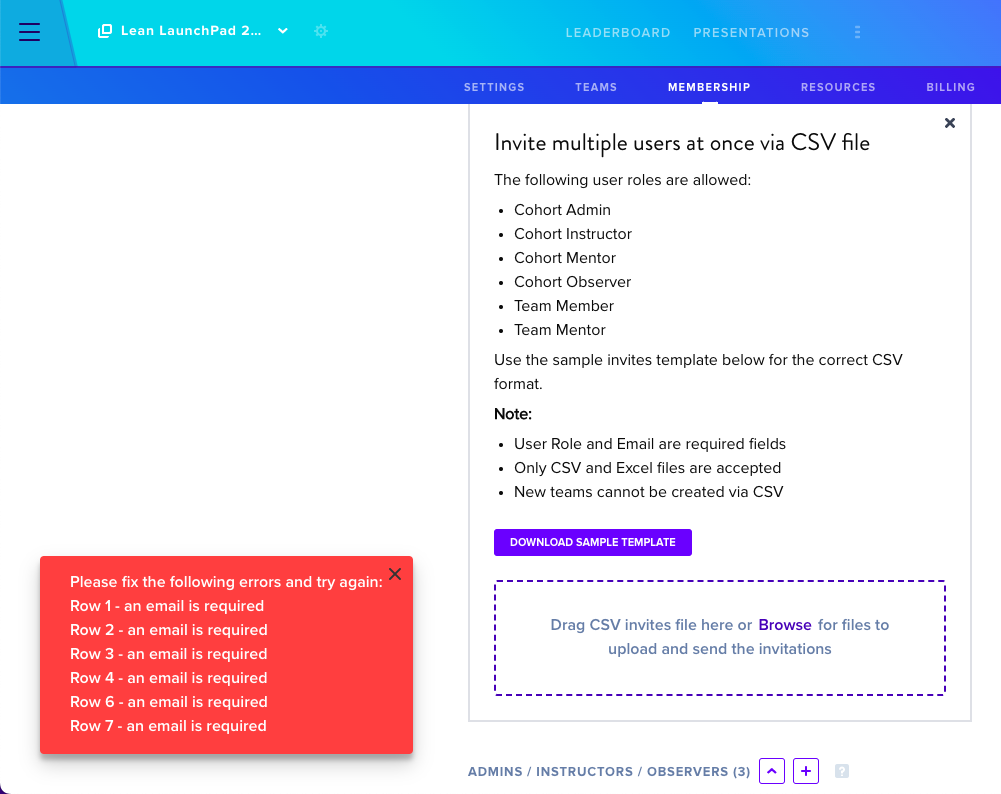
- Select Invite Multiple People via CSV and a list of permitted user roles as well as template format notes will appear.
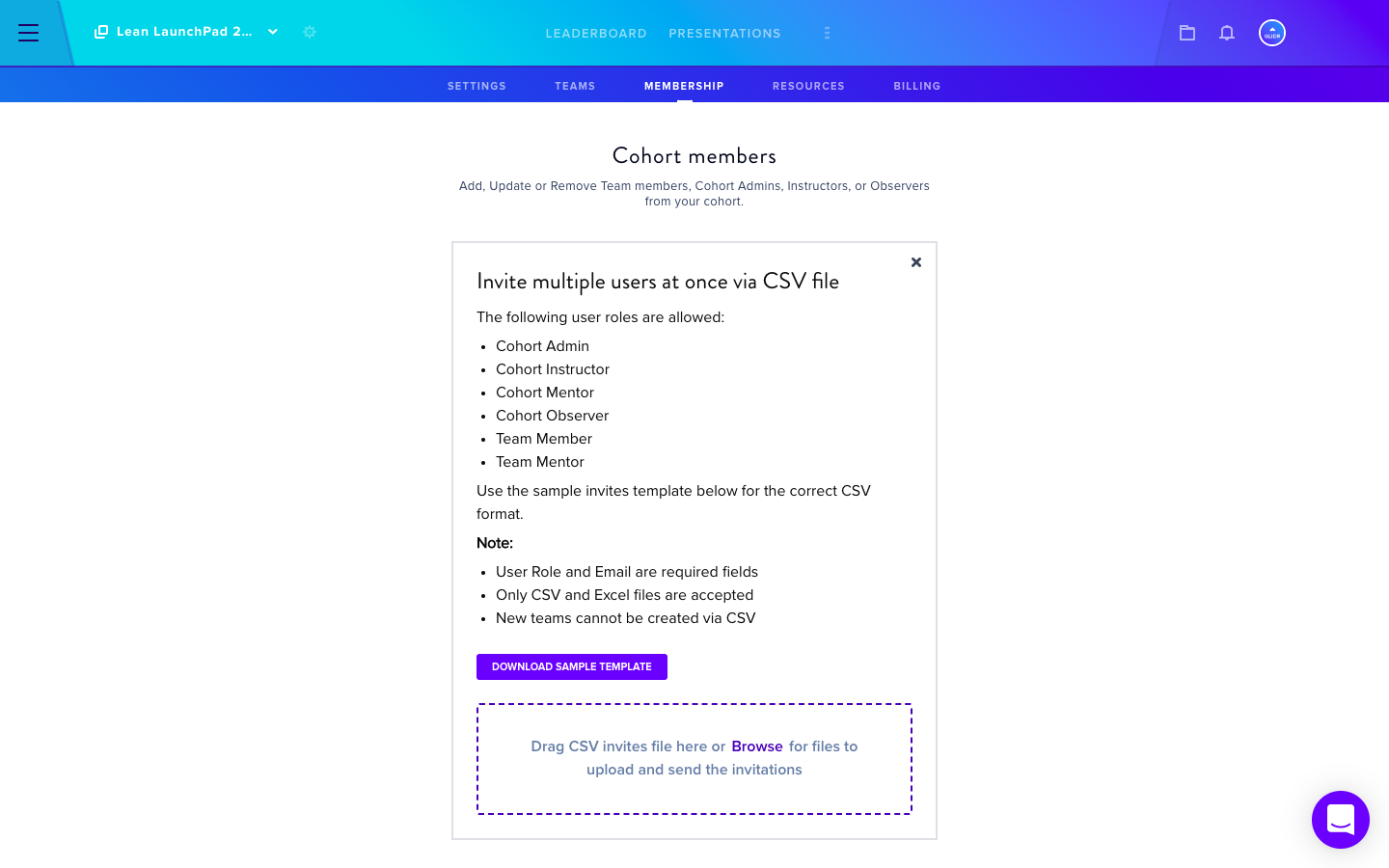
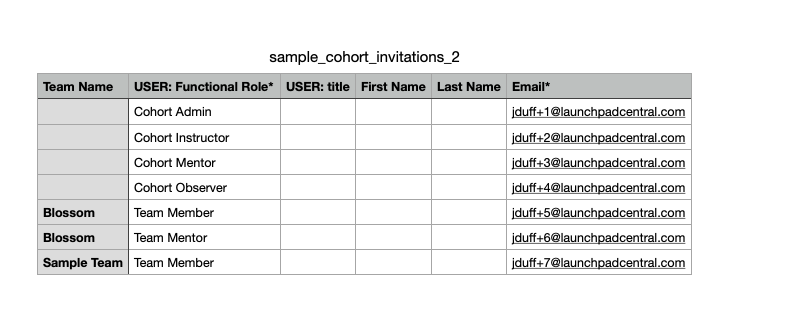
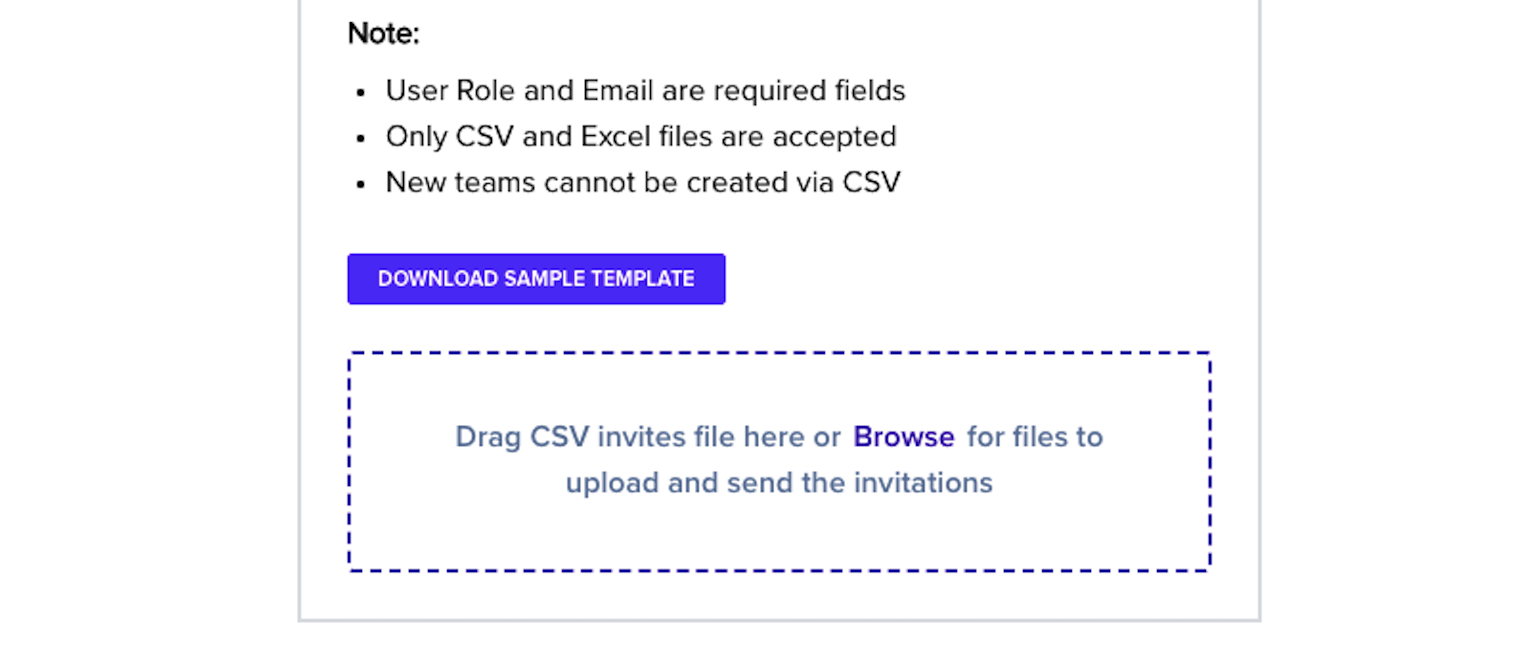
- Select Download Sample Template. You can open the template in Numbers or Microsoft Excel.
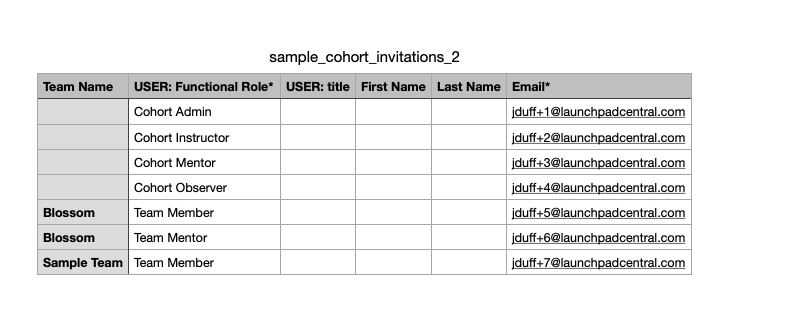
Note: The USER: Function Role and Email columns are required.
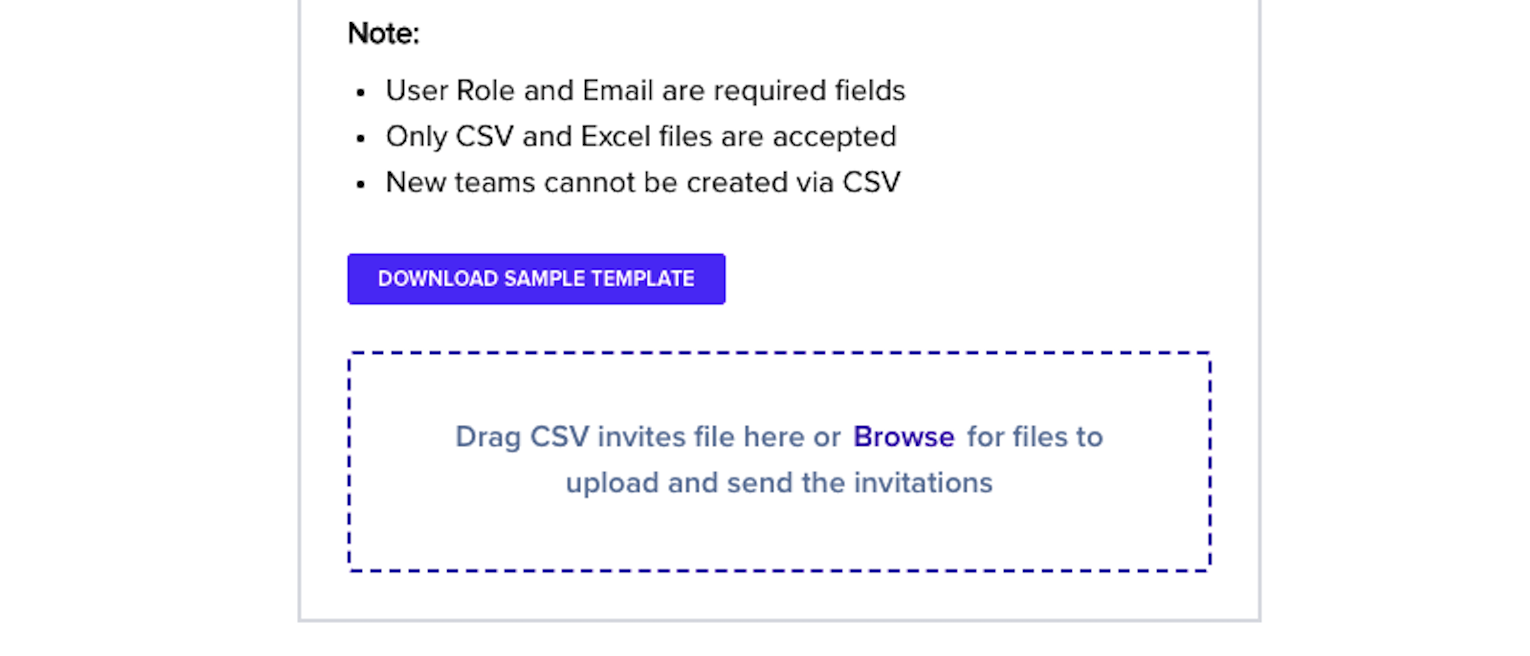
- Format the spreadsheet carefully by paying close attention to the Notes section. Export file as CSV and return to the platform to import the file.
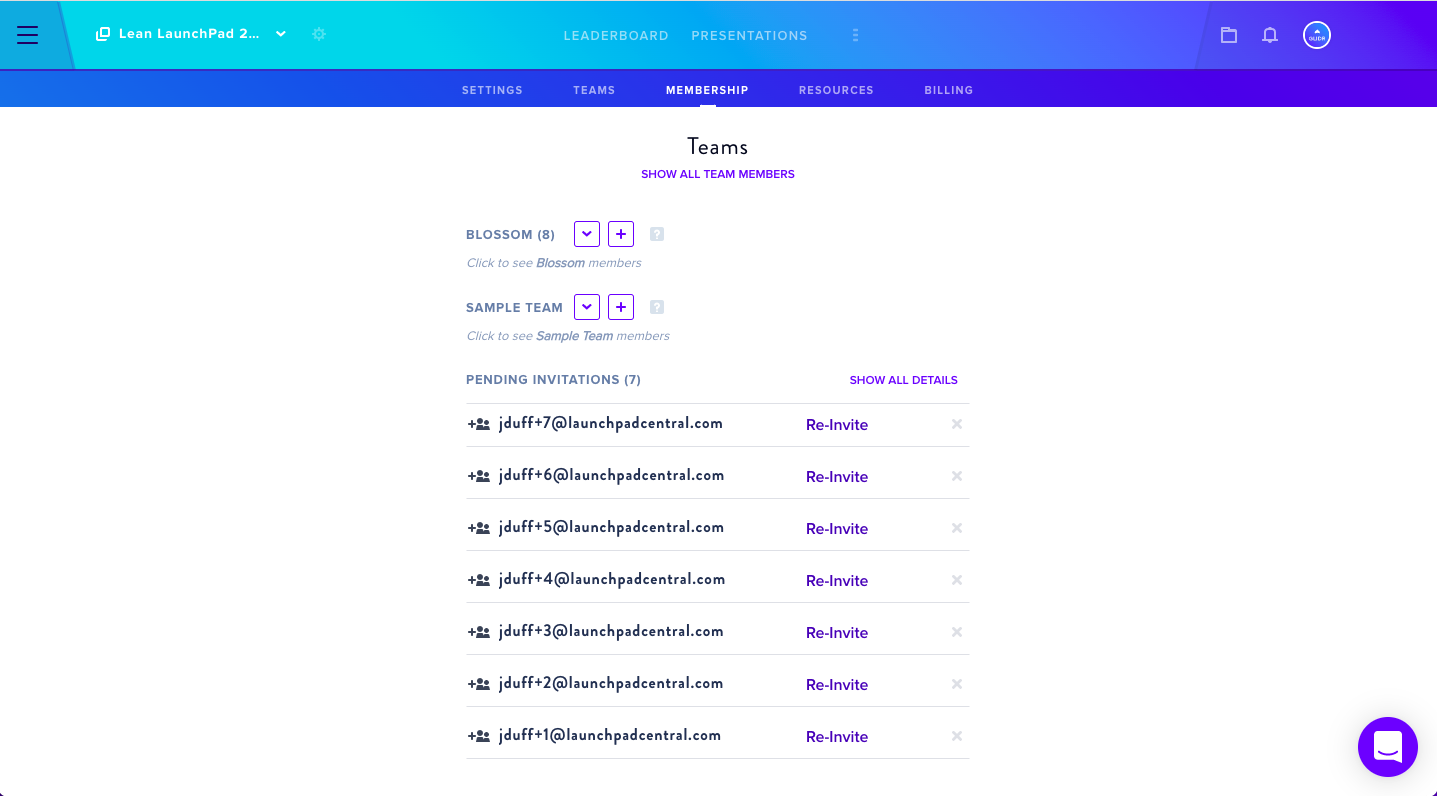
- Drag and drop or browse for the file to upload.
Results
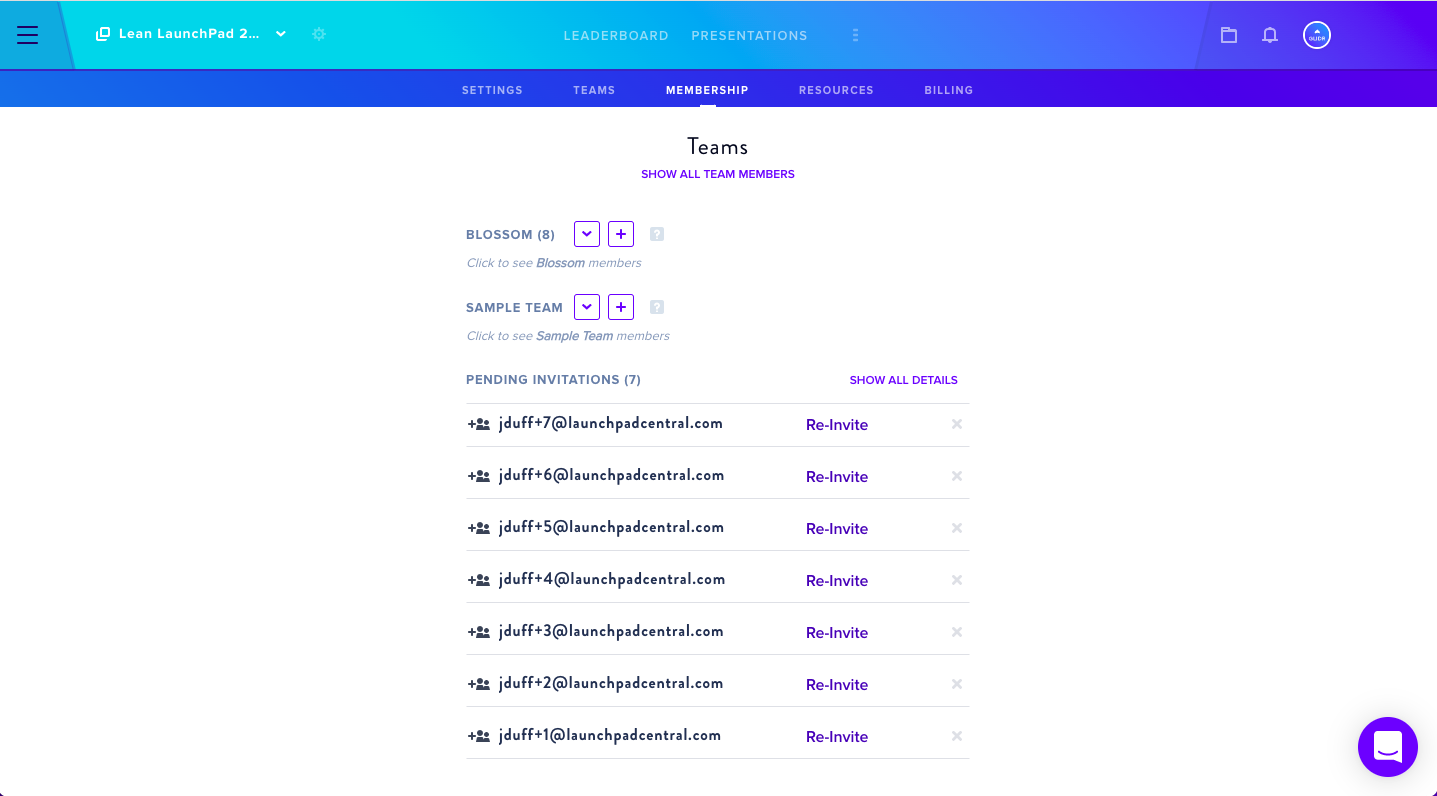
All users will receive invites via email and the page will update automatically showing accepted invitations (users who have used the platform previously) and Pending Invitations.
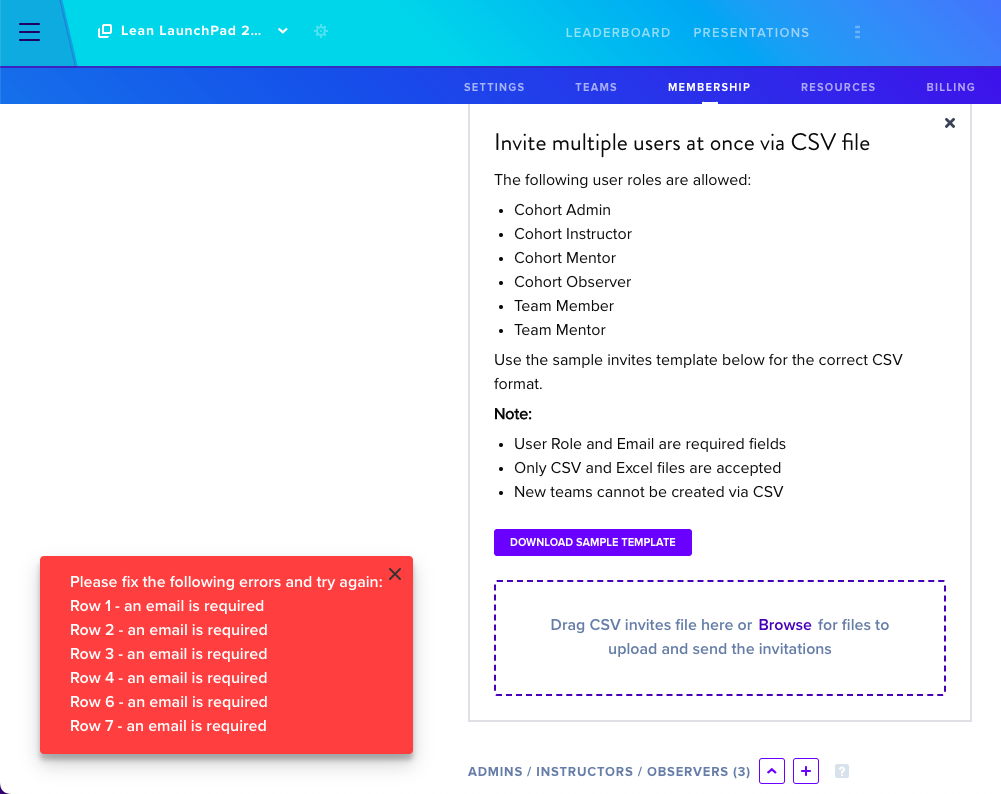
Should any errors occur, a notification with all errors that need to be addressed within the CSV will be listed.