
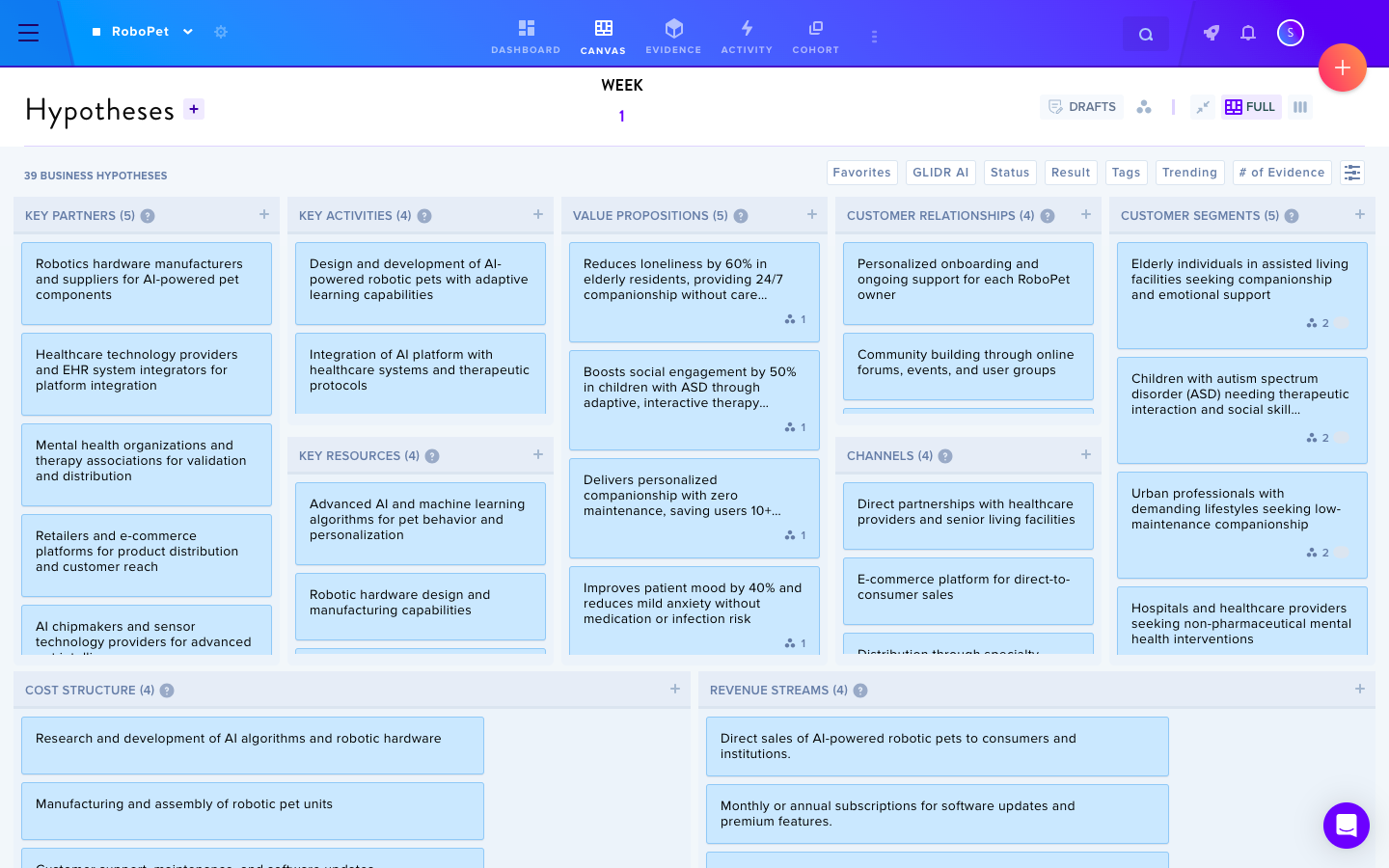
When your canvas is freshly generated based on your Project Description, all cards will appear blue. This visual cue helps you identify the original AI-generated content at a glance.
Note: All Garage, Business, and Enterprise users select the Idea icon to navigate to their canvas. Academic users select the Your Canvas icon from the top of the Leaderboard page to be redirected to their team canvas and the Canvas icon from within their team.
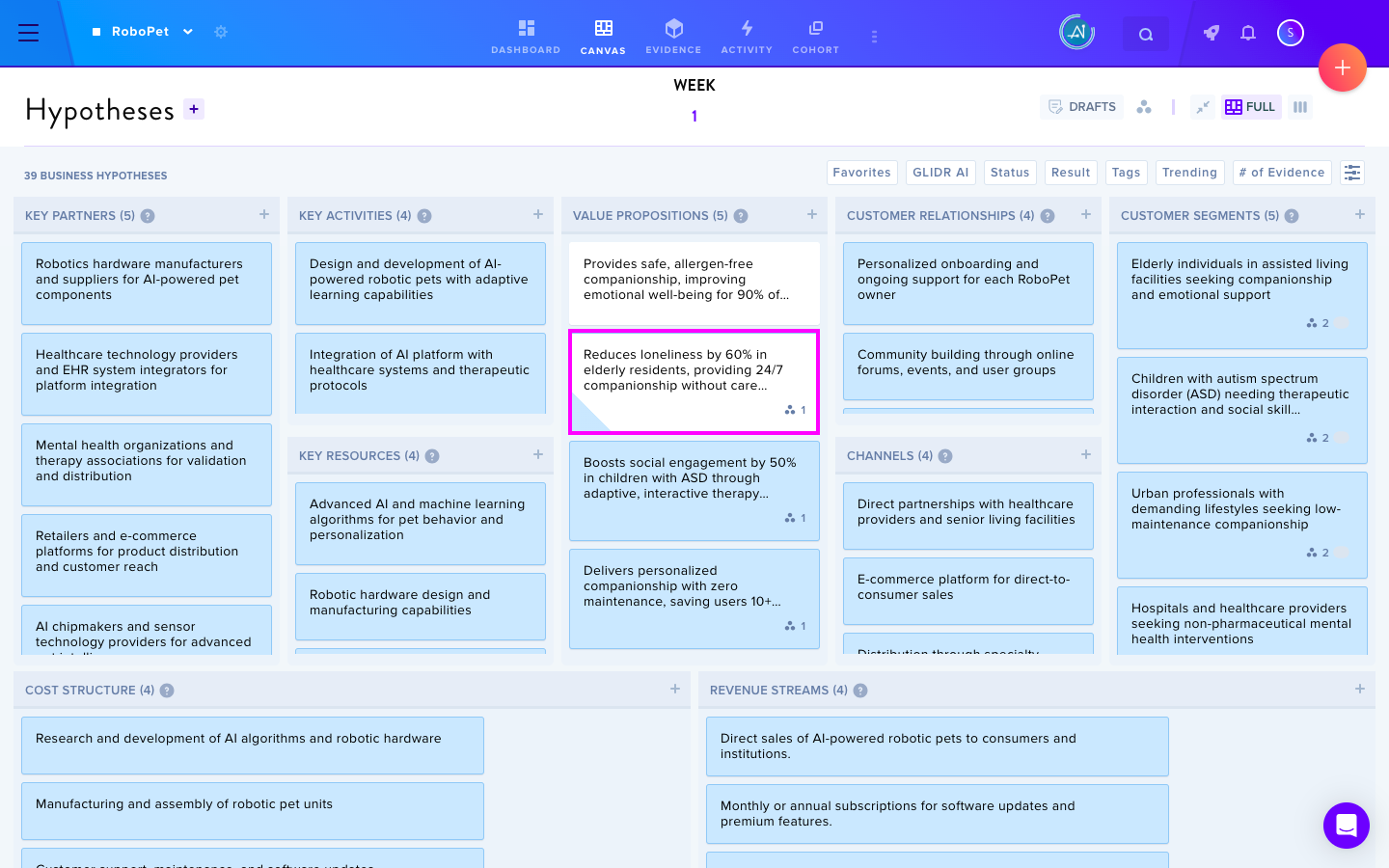
As you start interacting with your data, any edited cards will turn white with a blue corner, indicating Human-AI interaction. This shows that while the original content has been modified, it still retains some of its initial AI-generated insights.
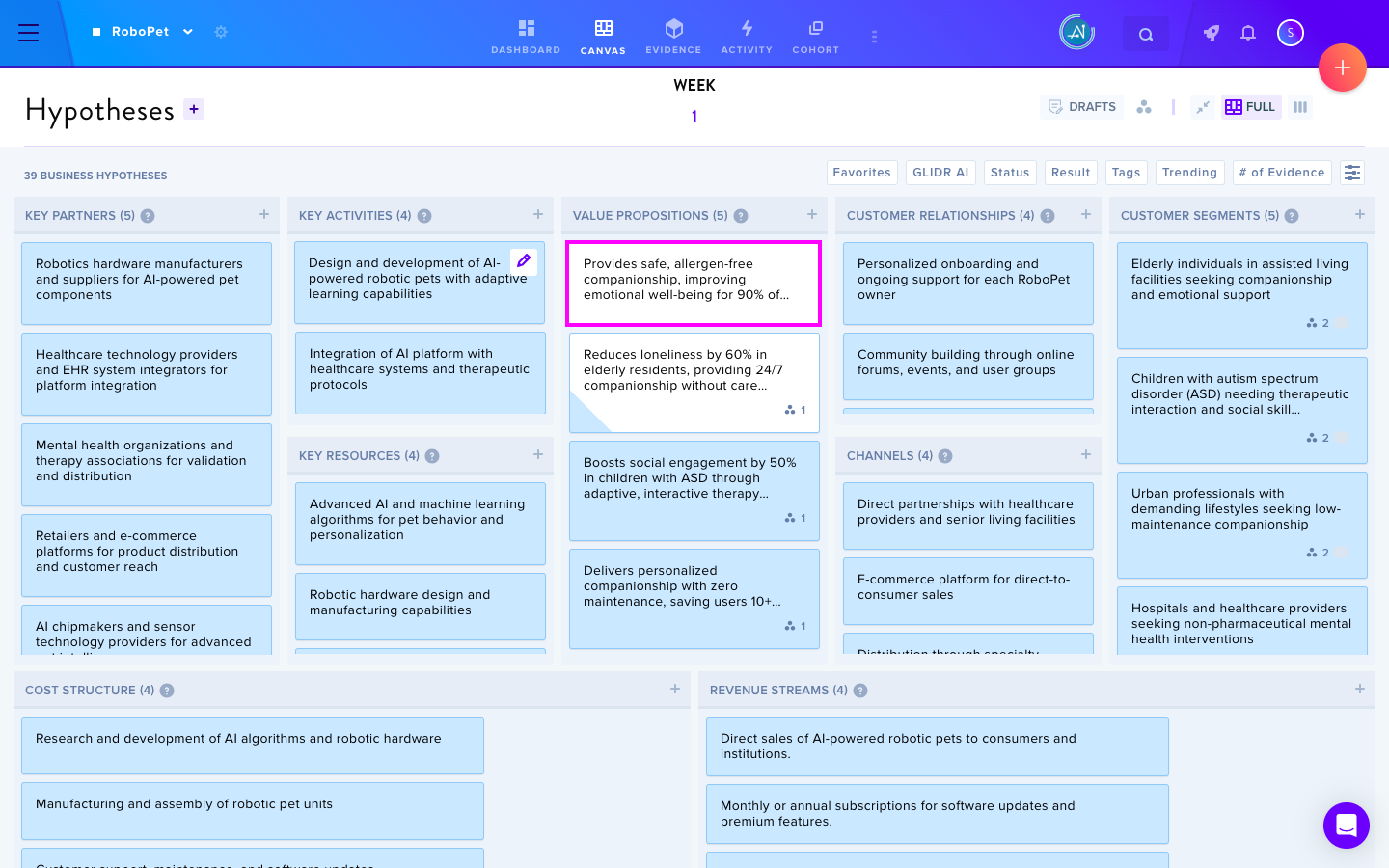
If you create a new card from scratch, it will appear entirely white, clearly distinguishing your custom additions from the AI-generated and edited content.
This color-coding system makes it easy to track the evolution of your business model, helping you seamlessly blend AI-generated insights with your unique input.