
Ask @GLIDR AI a question in the comments on a card or dashboard section, and the answer arrives right there, next to the discussion that raised it. The whole team sees it, so nobody has to take the question elsewhere and paste the answer back.
GLIDR AI answers from the card or dashboard section you're commenting on and the comments so far. On a card, that includes the evidence connected to it. Ask it which evidence argues against an idea, or to sum up a long discussion before your team decides.
Anyone who can comment can mention @GLIDR AI, as long as your organization's plan includes AI generation.
How to ask GLIDR AI
You can mention GLIDR AI in the comments on these cards:
- Business Ideas (Hypotheses on LaunchPad)
- Interviews
- General Evidence
- Experiments
- Intercom Conversations
It also works in the comments on each section of the Project Dashboard.
The Activity Feed doesn't support @GLIDR AI yet. To ask about something you see there, open the card and mention it in the card's comments.
- Open the card or dashboard section and go to its comments.
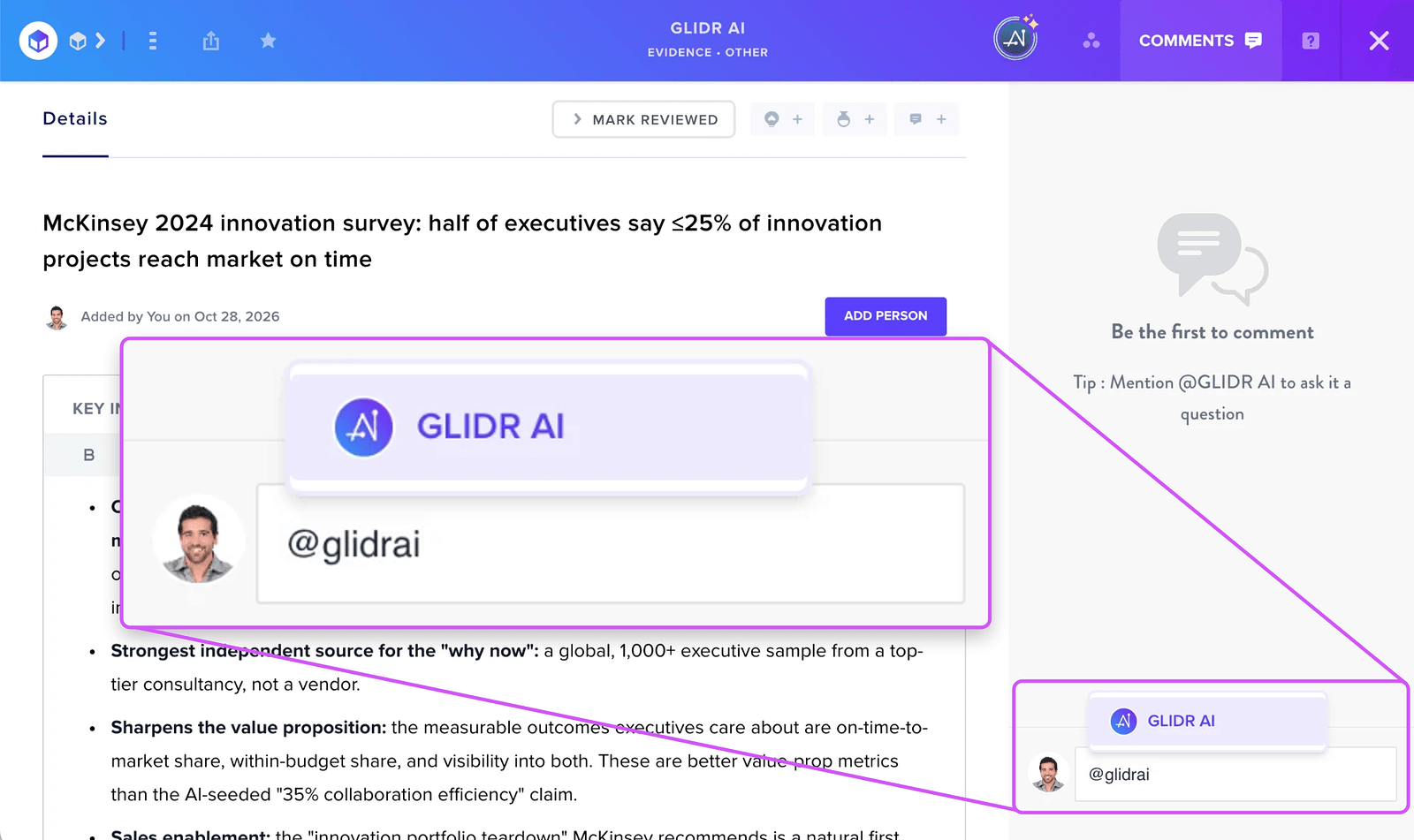
- Click into the Leave a Comment box and type @.
- Select GLIDR AI. It's the first entry in the list and shows the AI icon.
- Write your question or request in the same comment, for example: @GLIDR AI Which of the connected evidence argues against this idea?
- Press Enter to post it.
What happens after you post
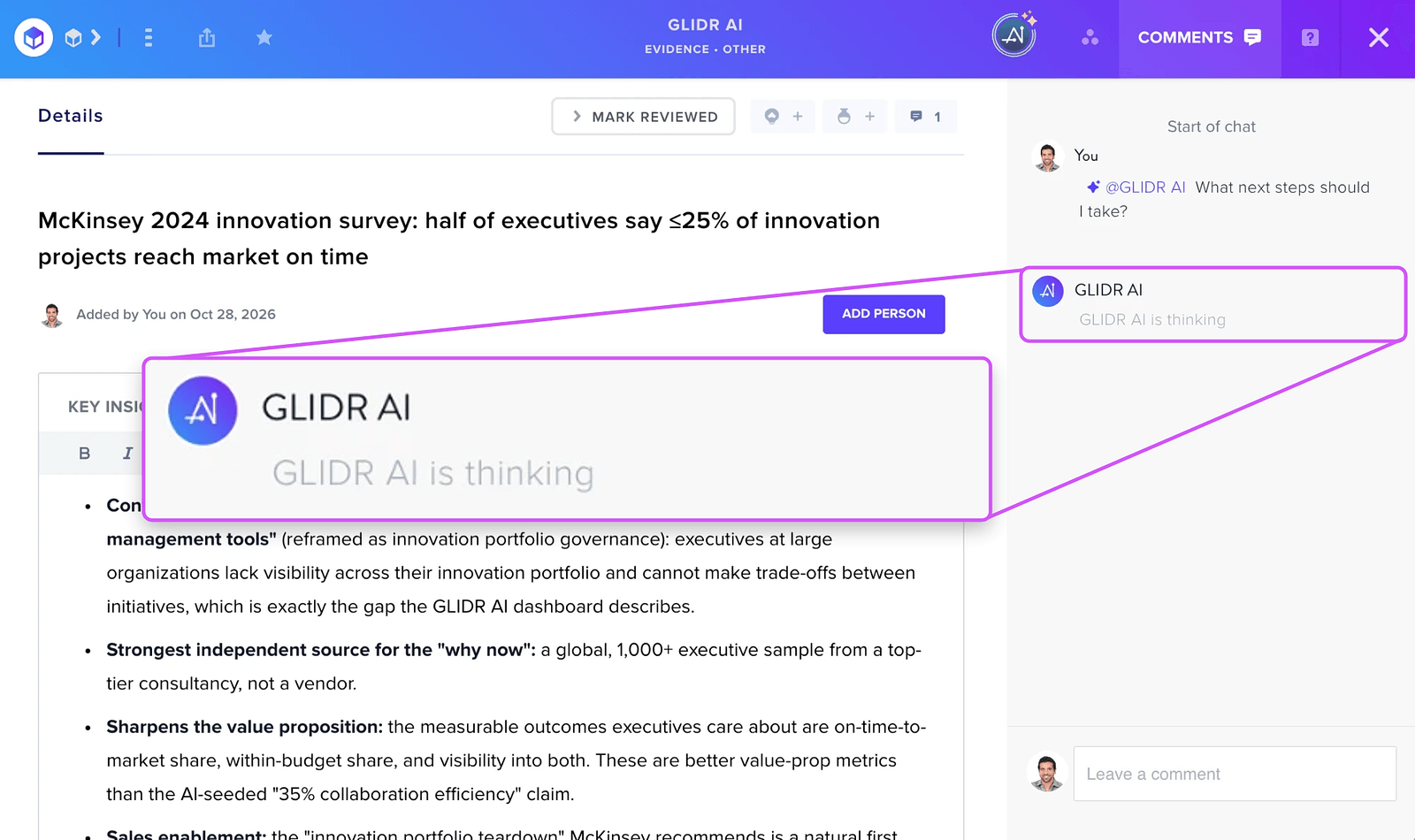
A GLIDR AI is thinking line appears at the bottom of the comment list.
GLIDR AI posts its answer as a reply to your comment, usually within a minute or two. Replies are a paragraph or two, in the language you wrote in.
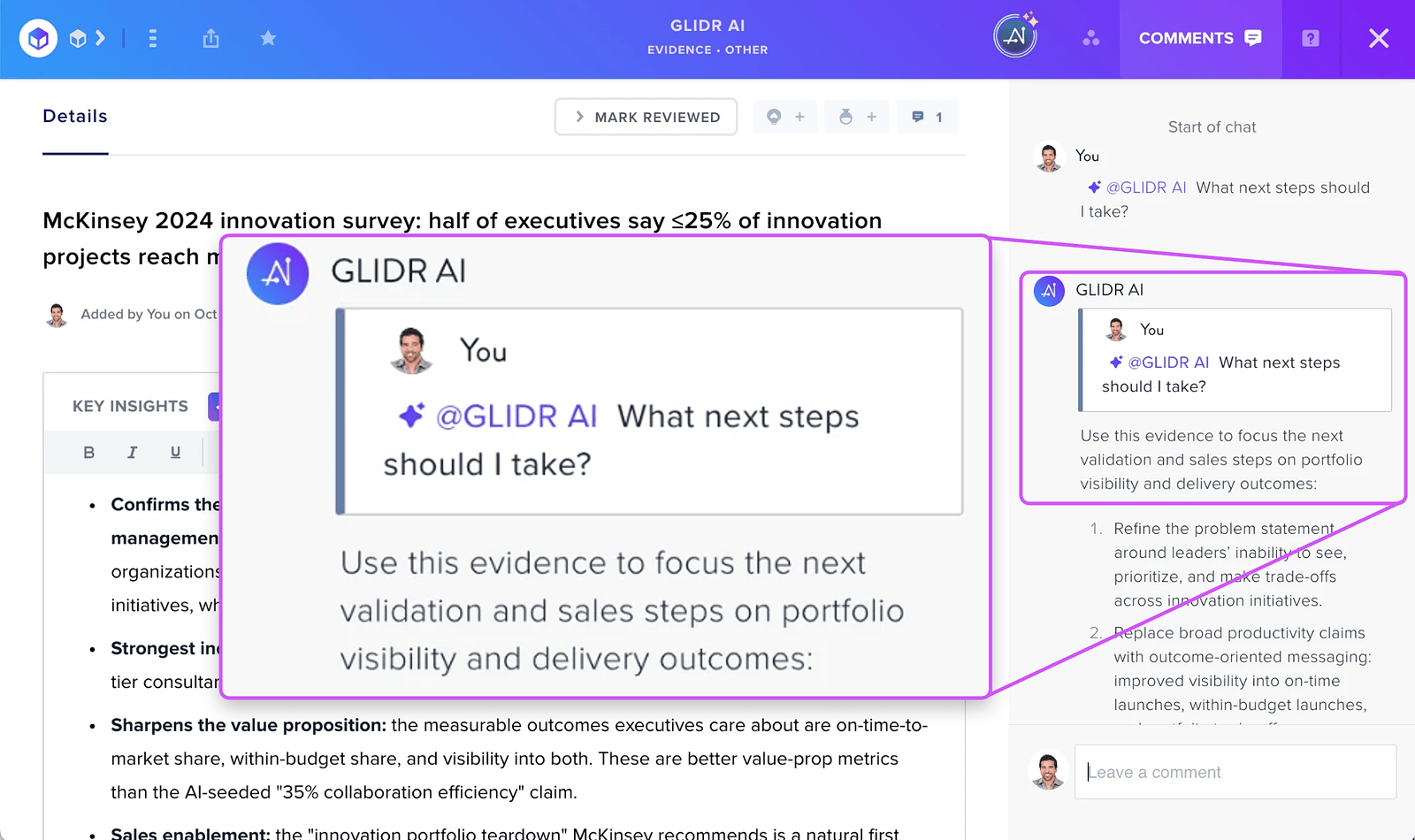
GLIDR AI only answers the question you asked. It doesn't create or change anything in your project.
If you mention GLIDR AI without asking anything, it replies with a short summary of the comments so far and asks what you'd like to know.
When two people mention GLIDR AI at once, each mention gets its own reply.
If GLIDR AI can't answer, the GLIDR AI is thinking line changes to GLIDR AI couldn't reply, with a Retry button for the person who asked.
Notifications
When the reply arrives, you get a notification from GLIDR AI. Everyone else on the project gets the regular comment notification.
What GLIDR AI reads
On a card, GLIDR AI reads:
- The card's content
- The cards connected to it and their ratings
- The earlier comments on the card
- Your project description
On a dashboard section, it reads the earlier comments on that section and your project description. On the Project Summary, Market Analysis, and Investment sections, it also reads the section's data.
Delete a GLIDR AI reply
Replies from GLIDR AI belong to your organization. Nobody can edit them. Organization owners and admins can delete them the same way they delete any comment.