Overview
GLIDR is a platform designed to help instructors manage student projects centered on idea validation through research and evidence gathering. The guide states: "GLIDR puts feedback, discovery and validation at the center of your academic program."
Team Management
Instructors can manage organizational access through the three-line menu.
The platform offers four permission levels:
- Members: Students with no admin access, limited to assigned projects
- Admins: Can create projects and invite users with limited admin capabilities
- Owners: Full access including user management; recommended for instructors and TAs
- Disable: Removes access while preserving contributed work
Project Creation
Enterprise users create multiple projects, with each team getting their own space.
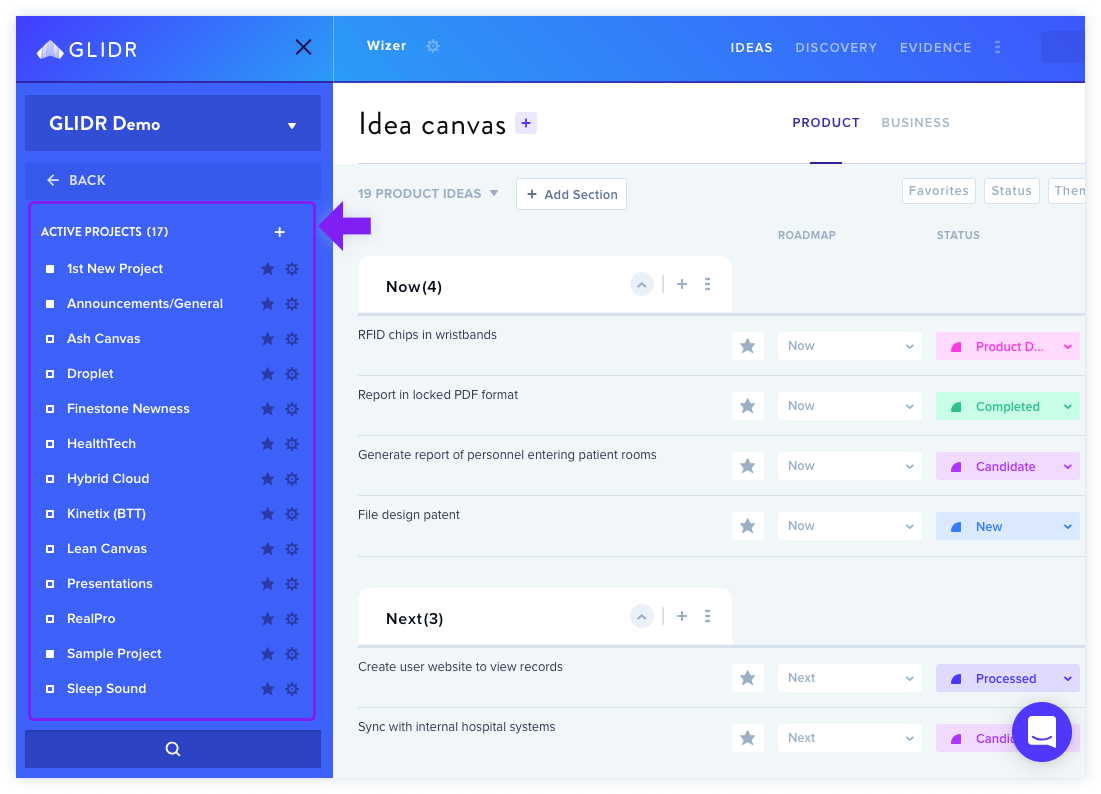
Within projects, instructors assign permission levels:
- Project Admins: Full project access (instructors/TAs)
- Collaborators: Primary contributors (students)
- Limited Contributors: View and comment only (mentors)
- Viewers: Read-only access
Projects can be marked private or public based on visibility needs.
Canvas Setup
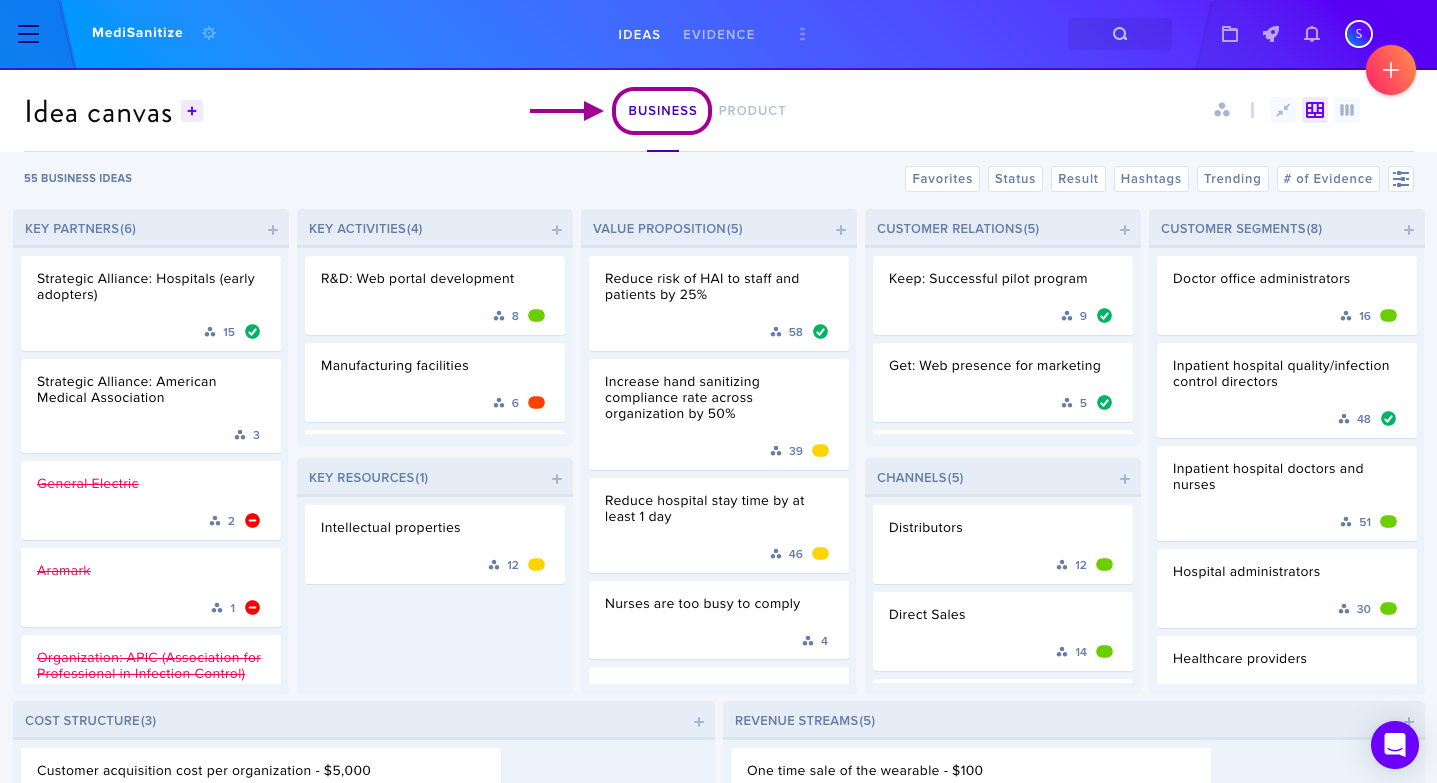
Two canvas types available:
- Business Canvas: For market-related ideas
- Product Canvas: For product-specific development
Adding Content
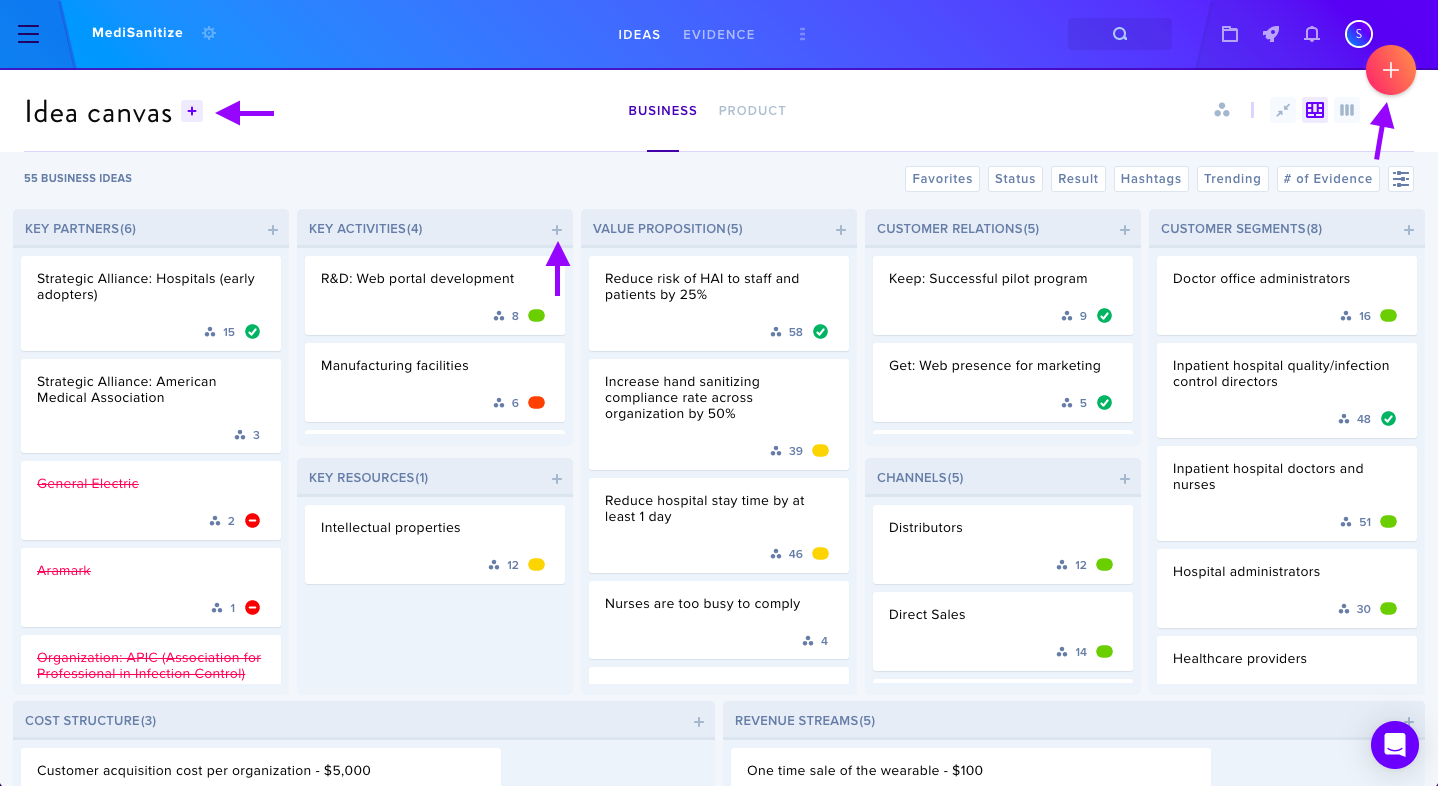
Ideas: Brief entries (100-character limit) expandable for detail. Teams click "+" buttons to add across canvas sections.
Evidence: Teams gather research through customer interviews (opens in new tab), A/B tests, and smoke tests, uploading supporting documents and images.
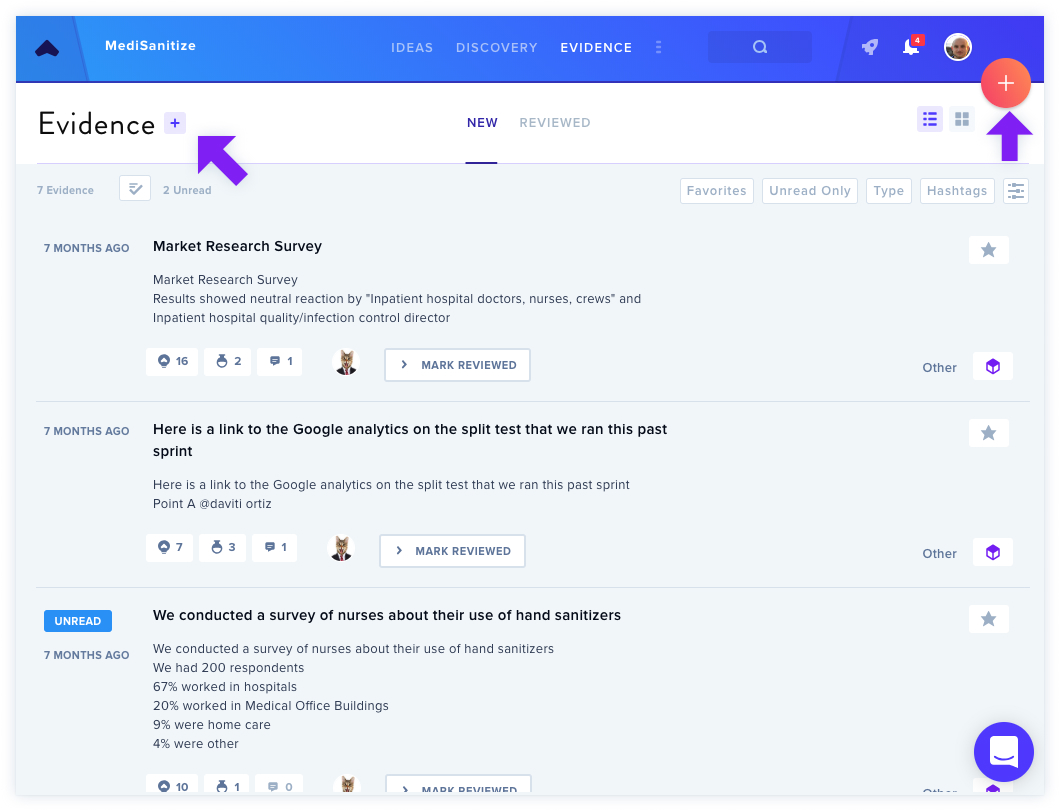
Connections: Evidence links to Ideas to show validation relationships.
Experiments & Research
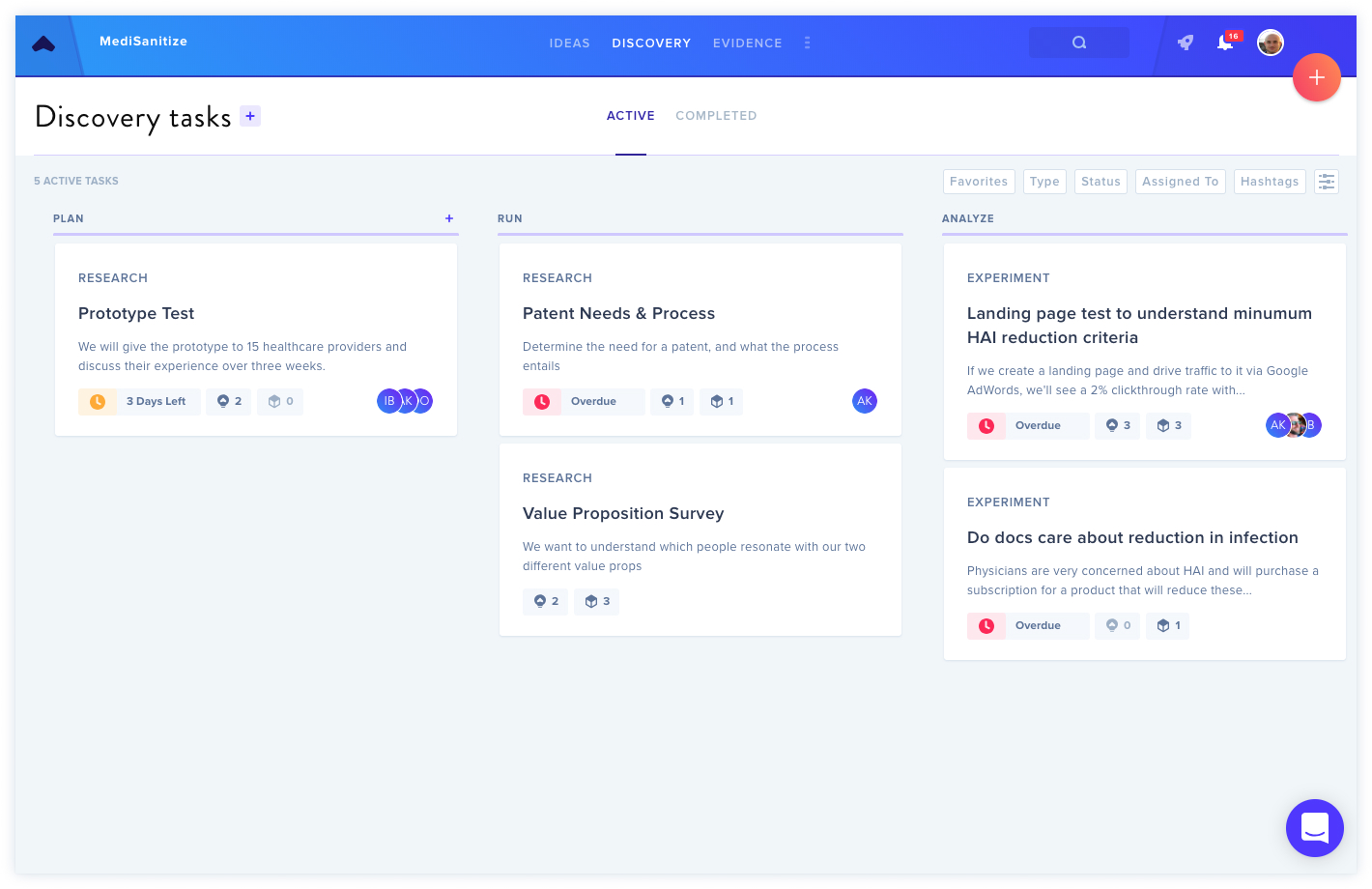
Teams can design experiments (testing specific hypotheses) or research (exploratory discovery). This feature toggles on/off in project settings.
Portfolio Dashboard
Instructors track class progress through the Portfolio Dashboard, viewing metrics on ideas and evidence across all teams.
Collections
Organize multiple projects by class or department to view grouped metrics in one location.
Additional Features
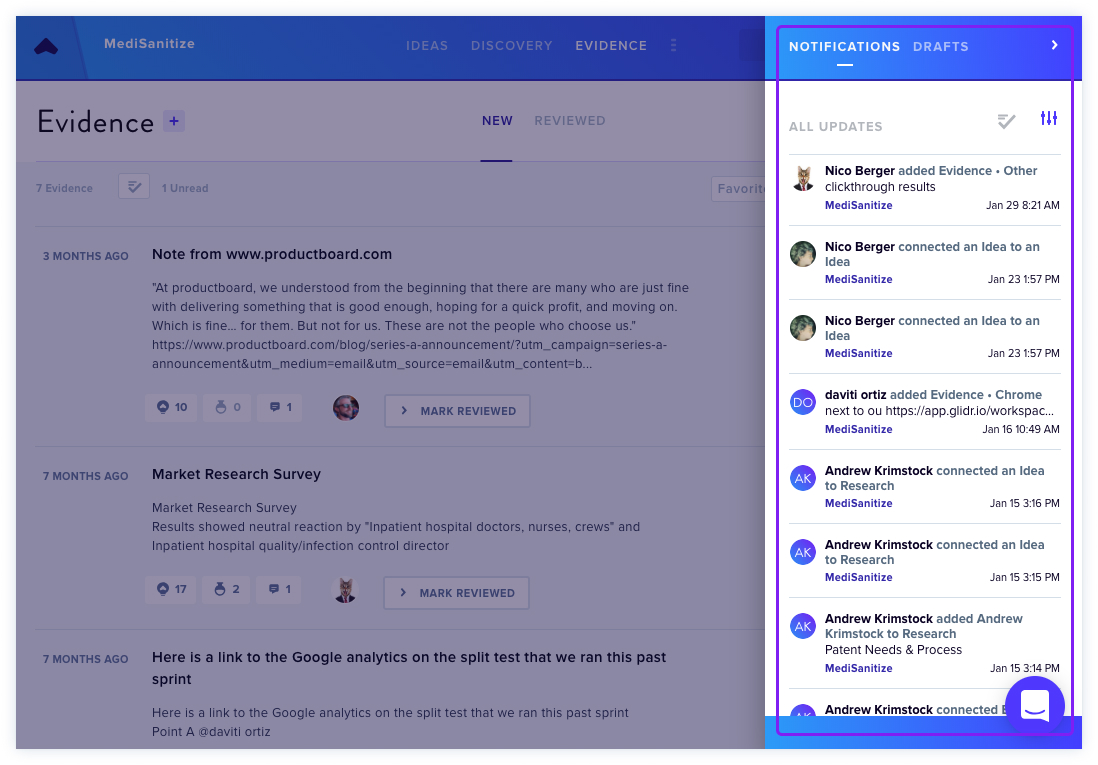
- Notifications: Access draft content and project updates via the notifications icon
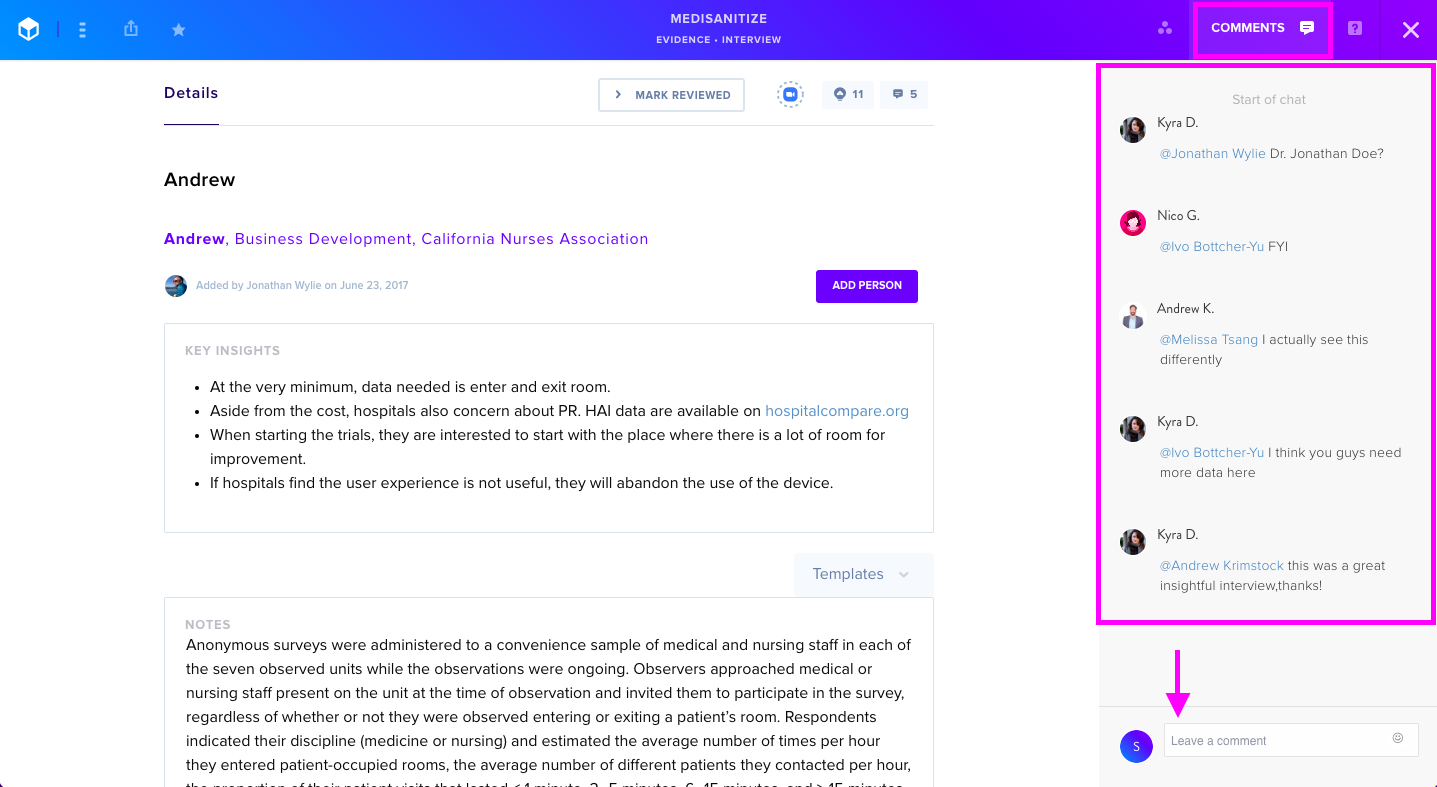
- Comments: Team members provide feedback with @mention capabilities
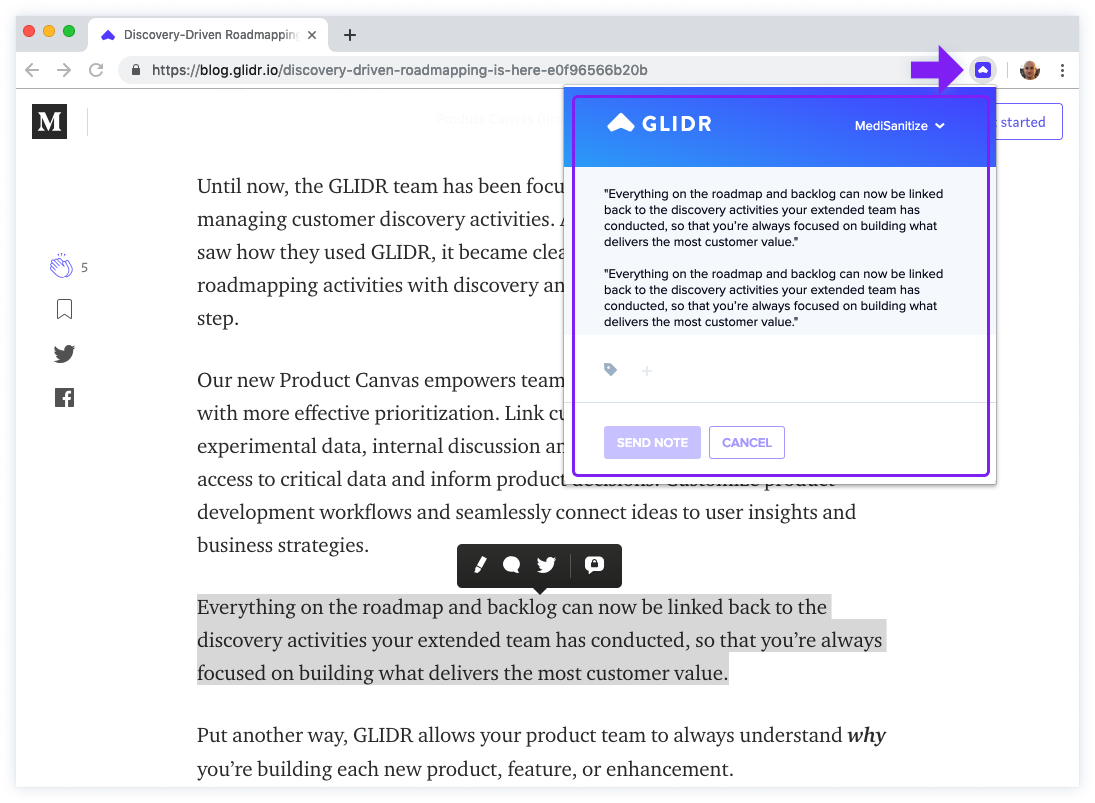
- Chrome Extension: "Capture by GLIDR" allows quick web content capture as evidence
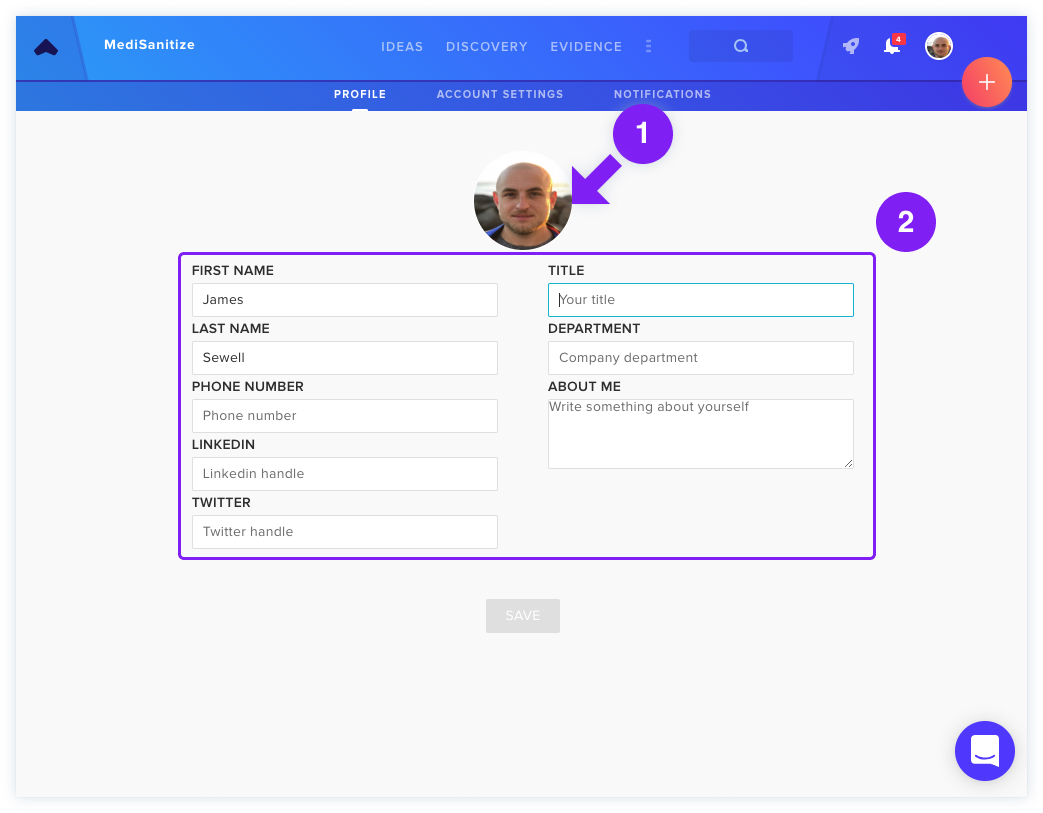
- Profile Setup: Customize profile information visible to teammates