
How to build out your customizable canvas in GLIDR AI.
The Business Canvas is designed to capture and develop ideas relating directly to the overall Business, whereas the Product Canvas is for developing ideas specific to a product within the Business.
The default canvas is the Business Model Canvas, though you can alternatively use the Mission Model Canvas. Features marked with a * symbol are available for Business and Enterprise users.
Canvas View
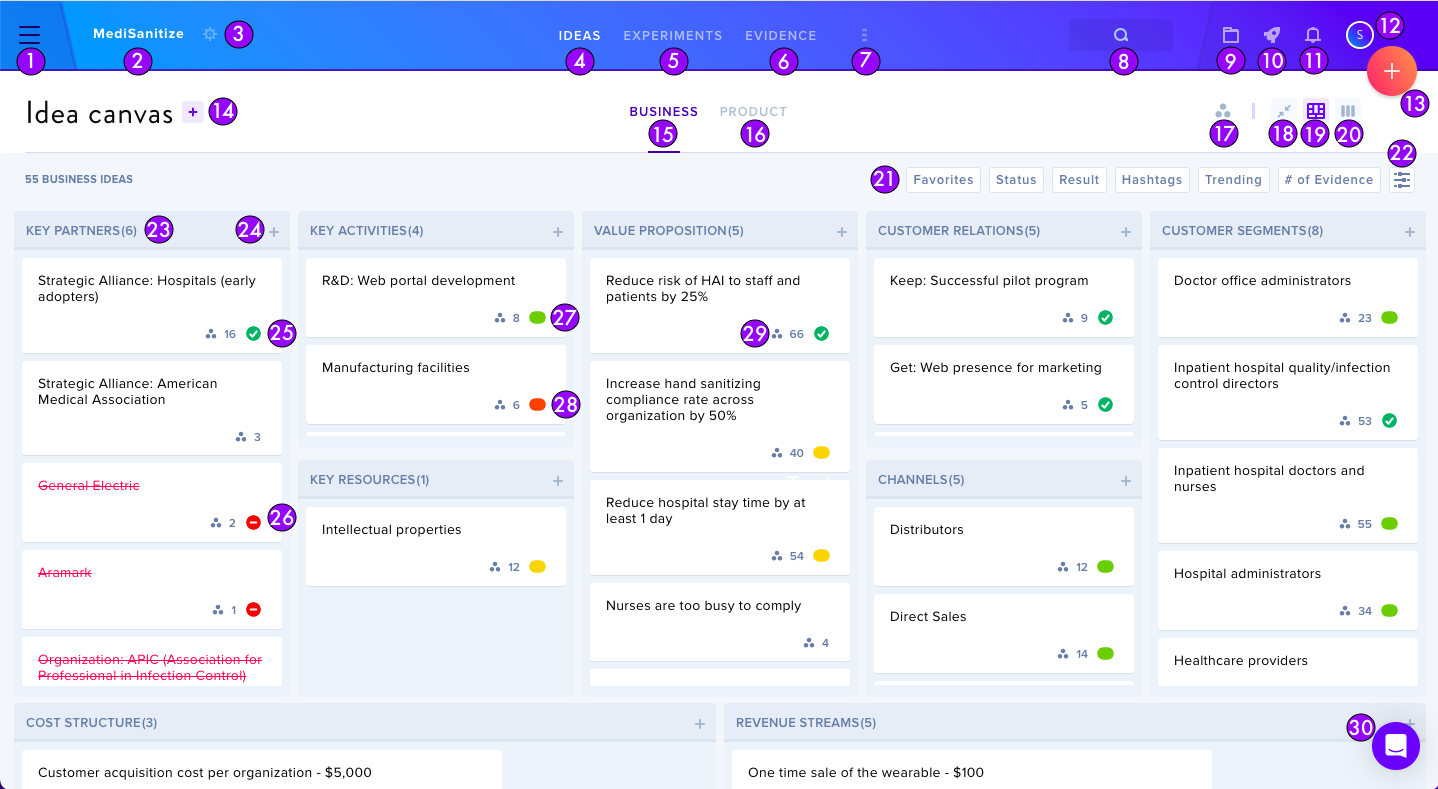
The interface includes these key elements:
- Organization Settings
- Project name
- Project Settings (Settings, Team Members, Integrations, Templates, Export, Notification Preferences)
- Ideas navigation
- Experiments tab (enable in Project Settings)
- Evidence tab
- Project Menu (Activity Feed, Project Overview, Project Dashboard for Enterprise)
- Search (fields within cards, across organizations)
- Organization Resources* (Customer Discovery Questions, Financial Model Template, Task Management)
- GLIDR Tour and Help Center access
- Notification Drawer (Drafts, Inbox)
- Account Menu (Profile, Notification Preferences, organization switching*, sign out)
- Big Red + Button (add Idea, Experiment, Evidence, Post)
- + Button (add idea to Canvas)
- Business Canvas display
- Product Canvas display
- Show Connections feature
- Expanded/Collapsed View
- Kanban View
- Filters, sectional buttons, idea validation indicators, trending icons, and evidence connection indicators
Kanban View
The Kanban view enables you to relocate ideas between sections and prioritize ideas within their respective sections.