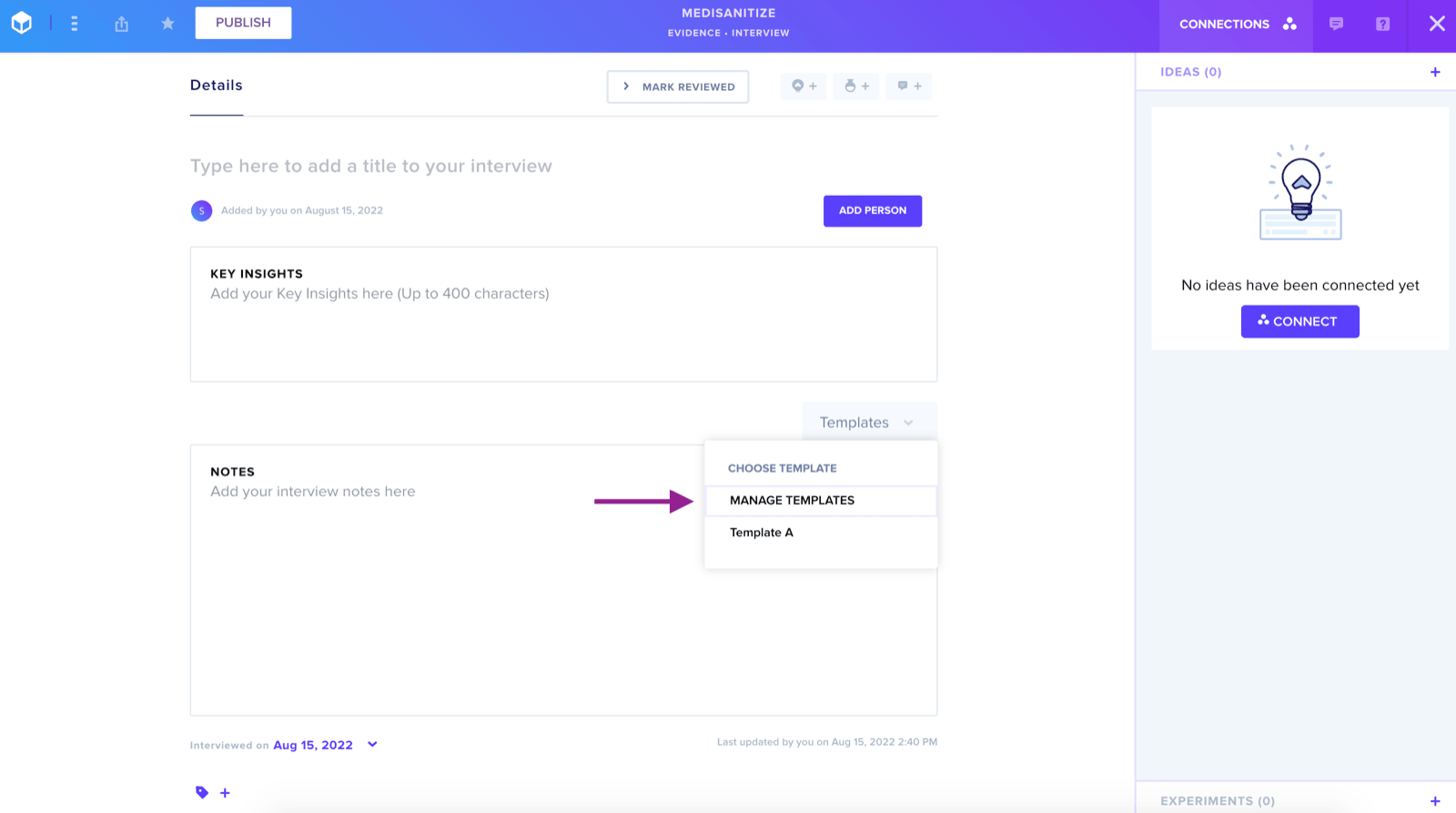
Create and use saved templates for your Interview notes.
Templates can be accessed through two methods: the Evidence page or the Templates button located above Notes within an open Evidence card.
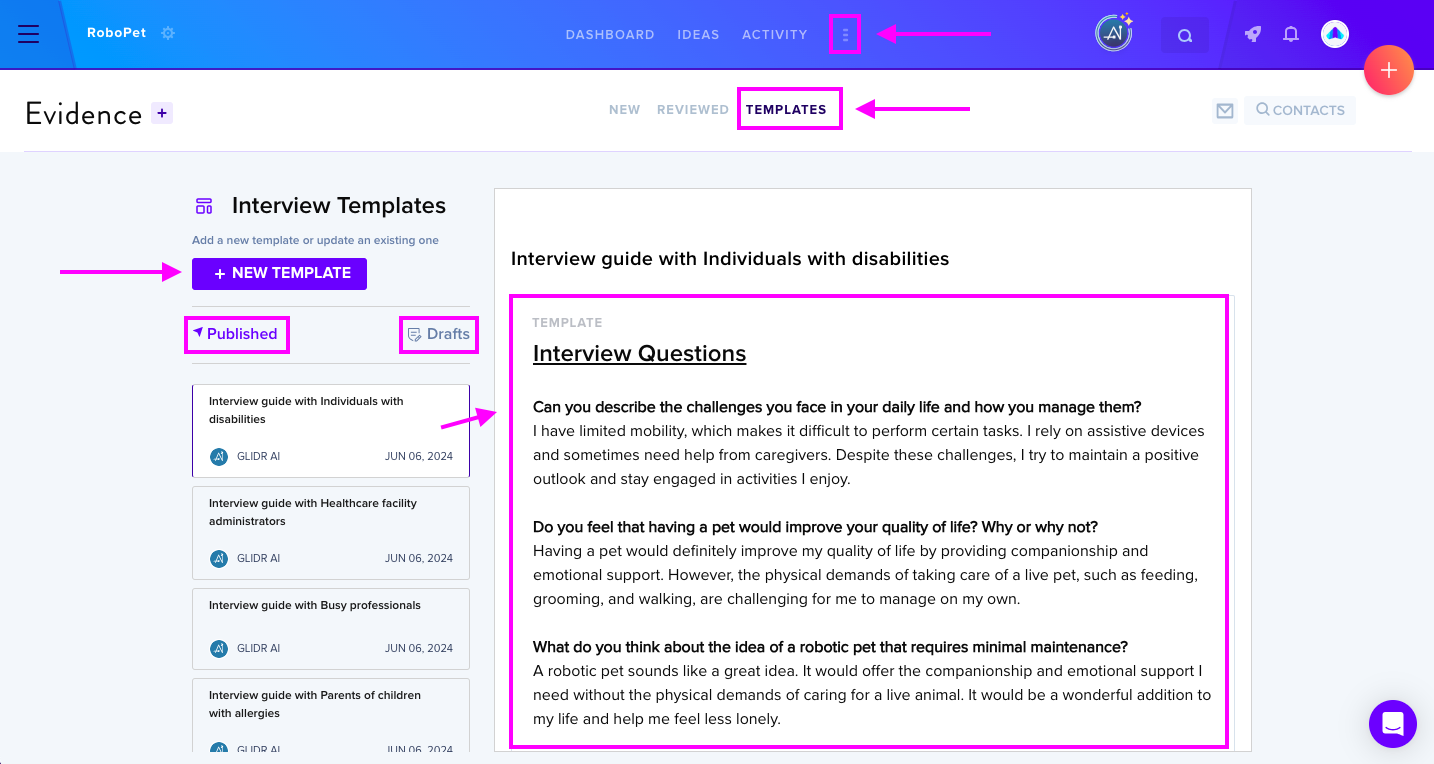
Creating Templates from the Templates Tab
Select New Template, add the title, and start creating. Once finished, select Publish to add it to the published templates list. If you don't select Publish, it saves as a draft. You can return anytime to edit or delete templates.
When ready to use your template, click the Templates button within any open Evidence card to access the template and populate the Notes section.
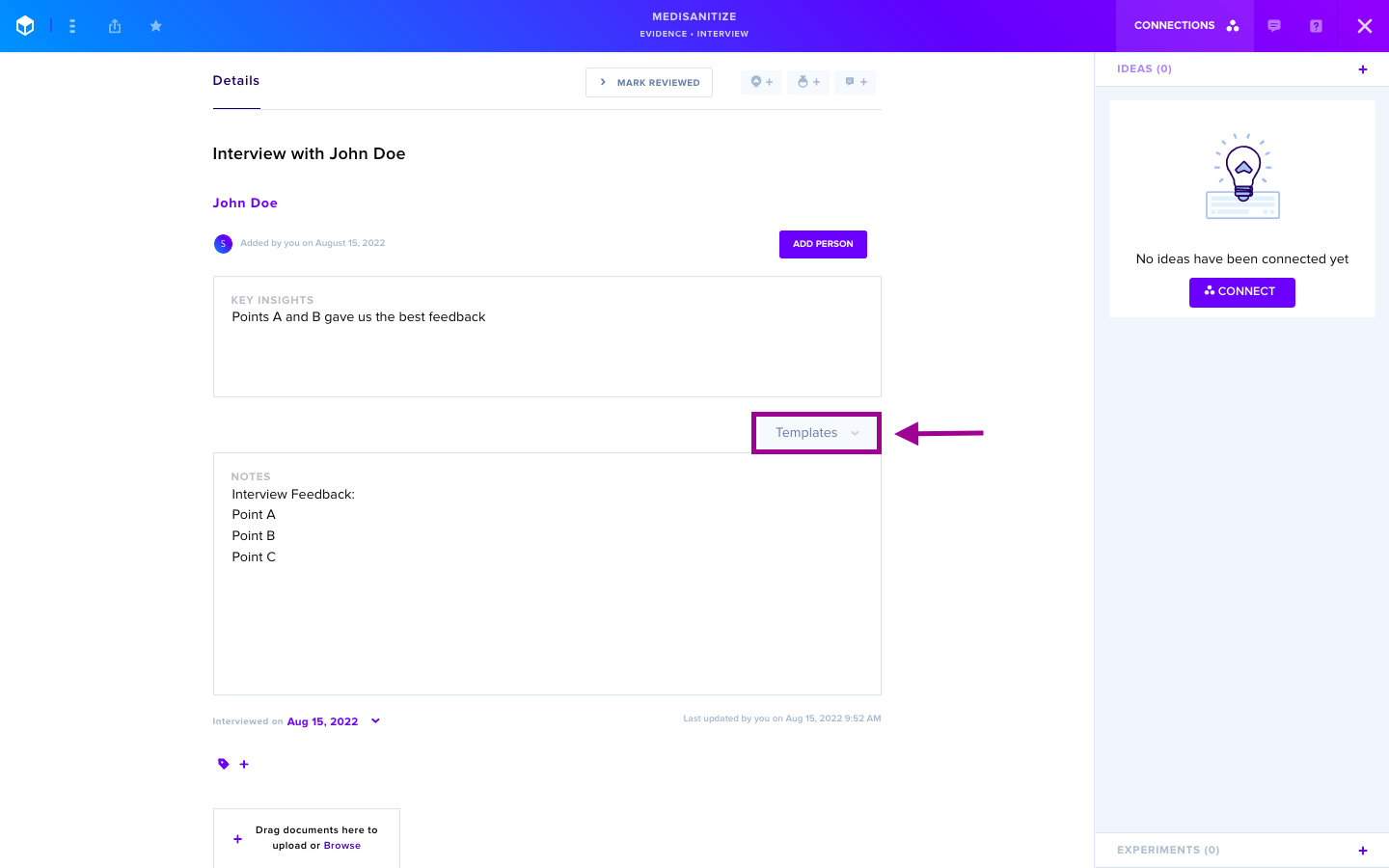
Creating Templates from Evidence
Enter your interview data into the Notes section. Once finished, select Templates then Save As New Template from the dropdown menu, add a title, and press enter. This will automatically add the template to the published list so that it is immediately ready to use and accessible from the Template button menu.
You can also select Manage Templates from the dropdown menu to access the Templates section in Project Settings to access, edit, and delete templates.