
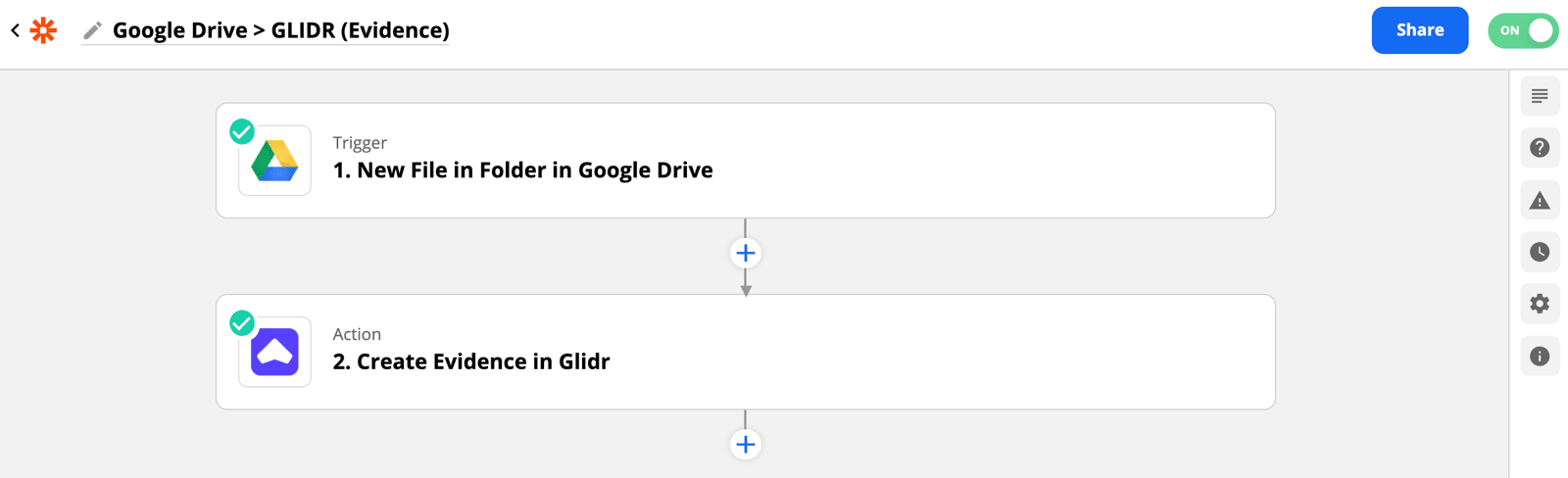
Use Google Drive to create an Evidence card.
-
Select Google Drive as your trigger app.
-
Select your trigger event. We recommend "New File in Folder."
-
Choose your Google Drive account to connect.
-
Select the Trigger. In this example, we created a GLIDR folder to hold all relevant files.
-
Test the trigger to confirm connection with Google Drive. It may help to create a test file to place in your folder.
-
Select GLIDR as your Action app and choose your Action Event. In this example, we chose Create Evidence.
-
Choose your GLIDR account to connect.
-
Set up your Action with the information you would like included in your Evidence card. For best practices, we selected the File Name/Title and Owner Name as the card title. For the summary, we included the Created Date and Embed link. Don't forget to include tags for reference.
-
Test the action to confirm that the zap is working properly.
-
Turn on your zap.
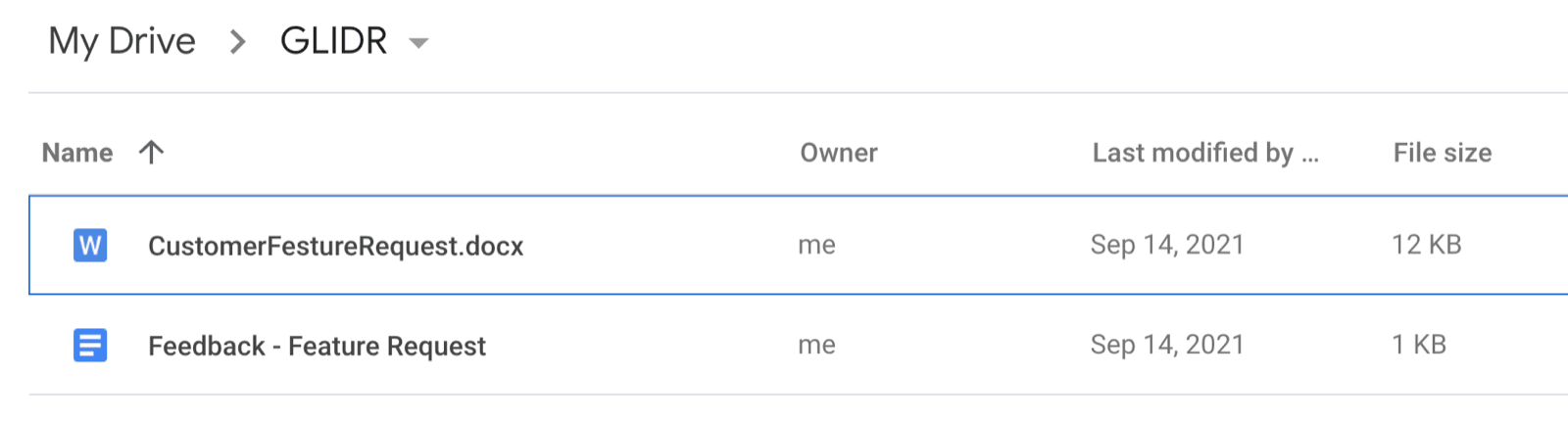
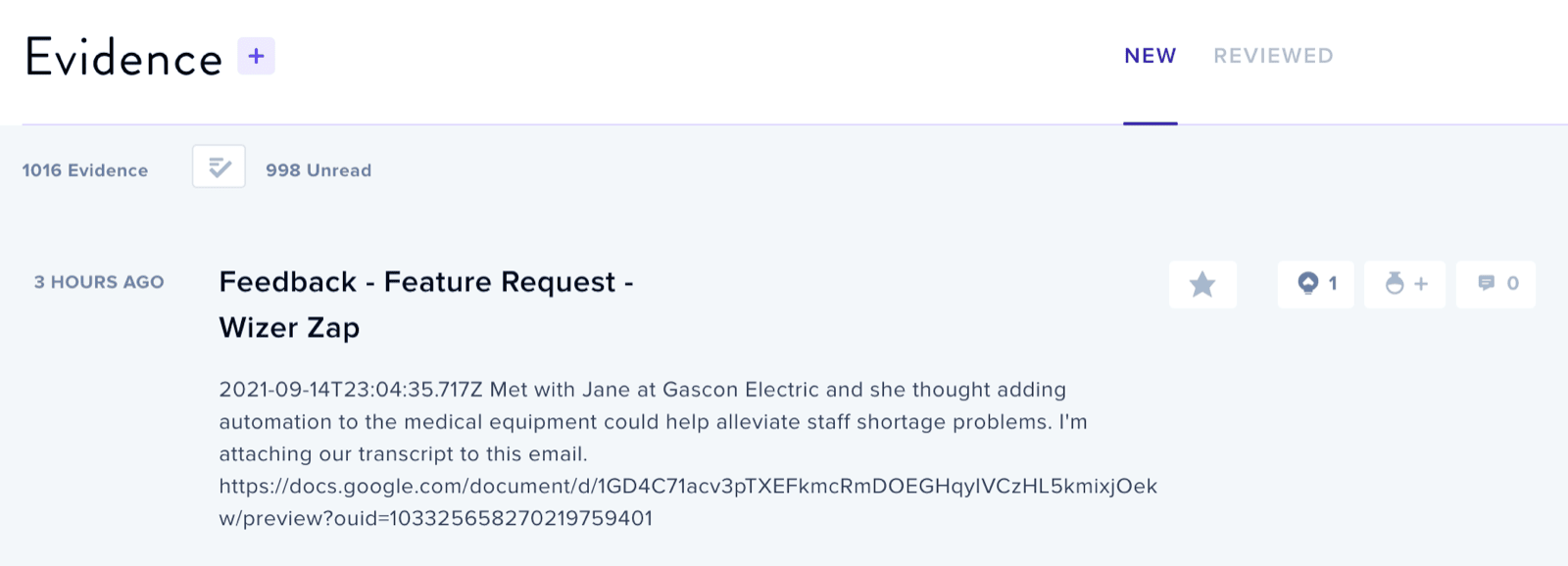
With this zap, you can add a file to a Google Drive folder to create an Evidence card in your GLIDR project. Check out our other recommended zaps.