
This guide explains how to establish the GLIDR-Trello integration to facilitate moving ideas forward in your workflow.
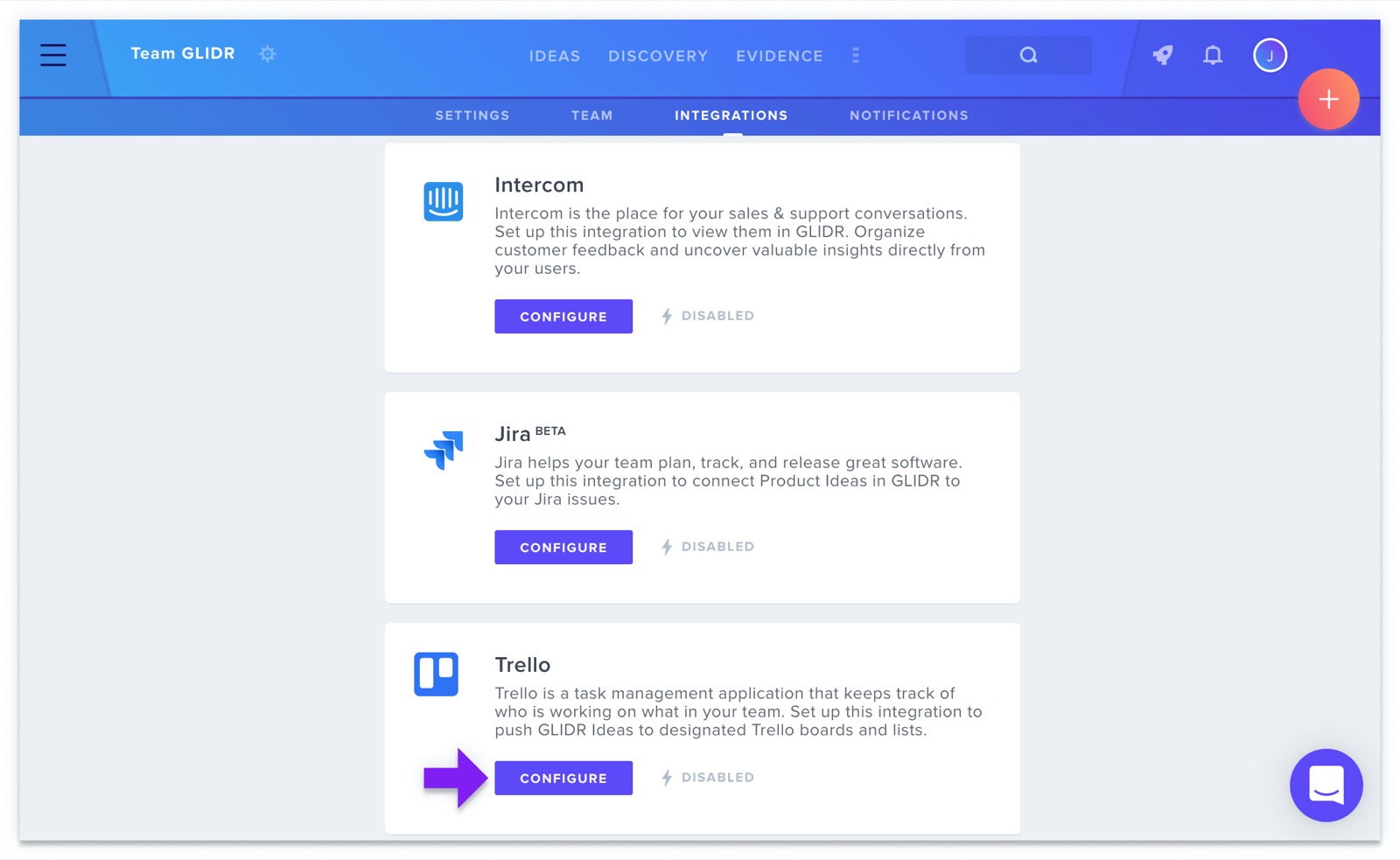
Enable the Trello Integration
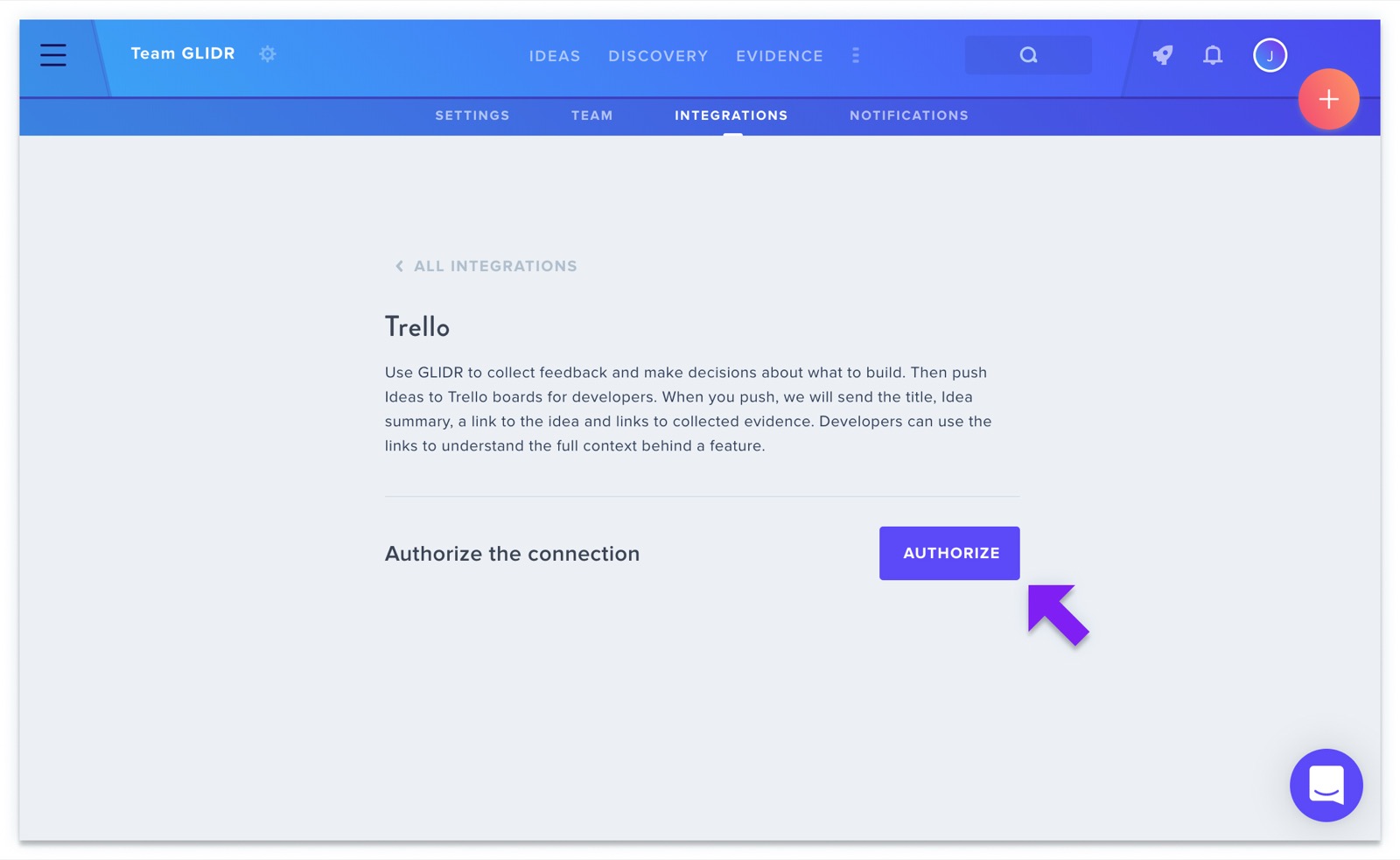
All integrations are accessible through Project Settings. To initiate the Trello setup, select the Configure button. You'll then authorize the connection, granting GLIDR permission to transmit data to Trello.
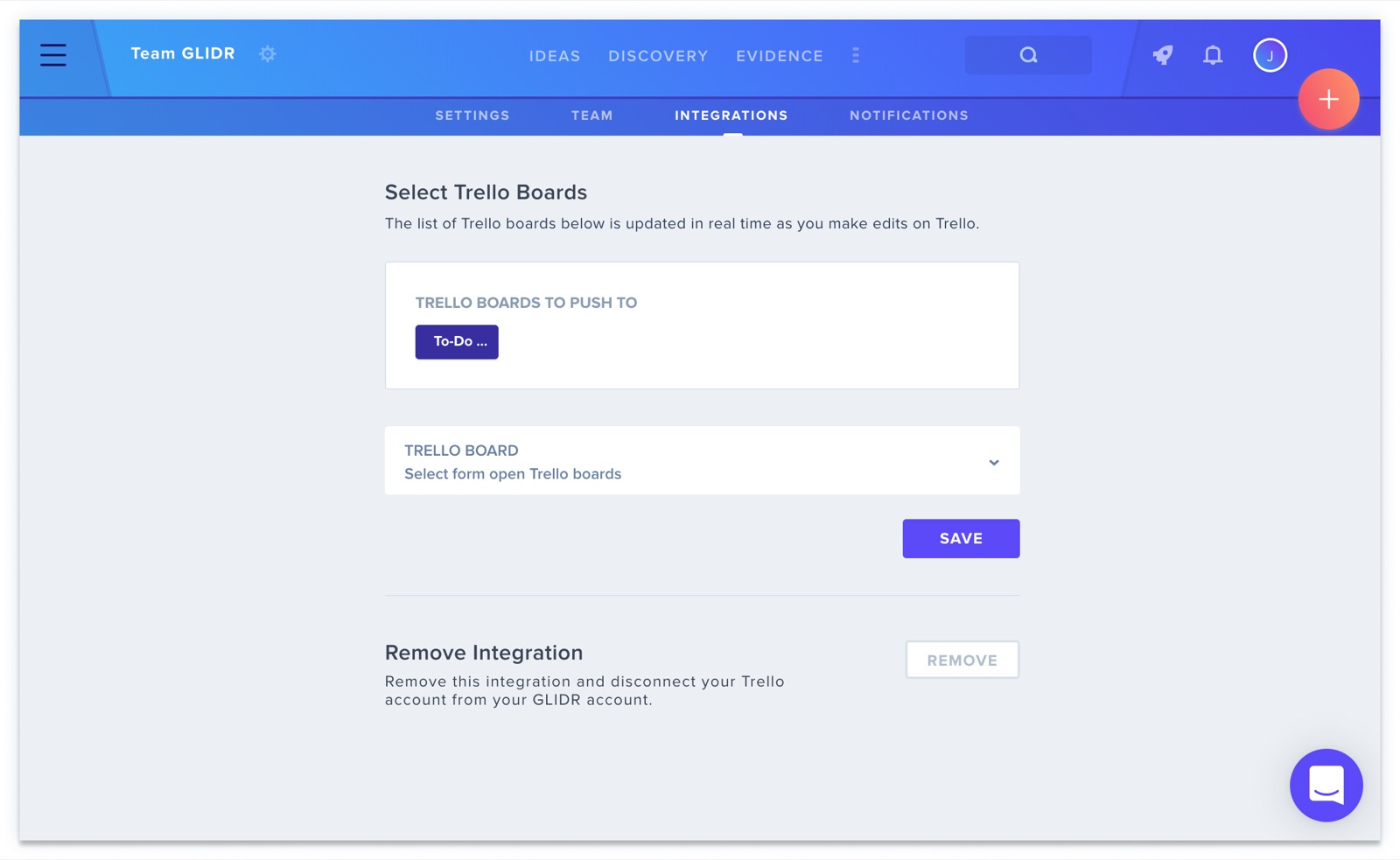
Select Trello Boards
When managing multiple Trello boards, you can specify which ones appear in GLIDR by opening the dropdown menu and clicking Save once your selections are complete.
Note: When you set up your Trello integration, the option to push GLIDR Ideas to Trello will be available to all Project members, even those who don't have access to the Trello board.
Send an Idea to Trello
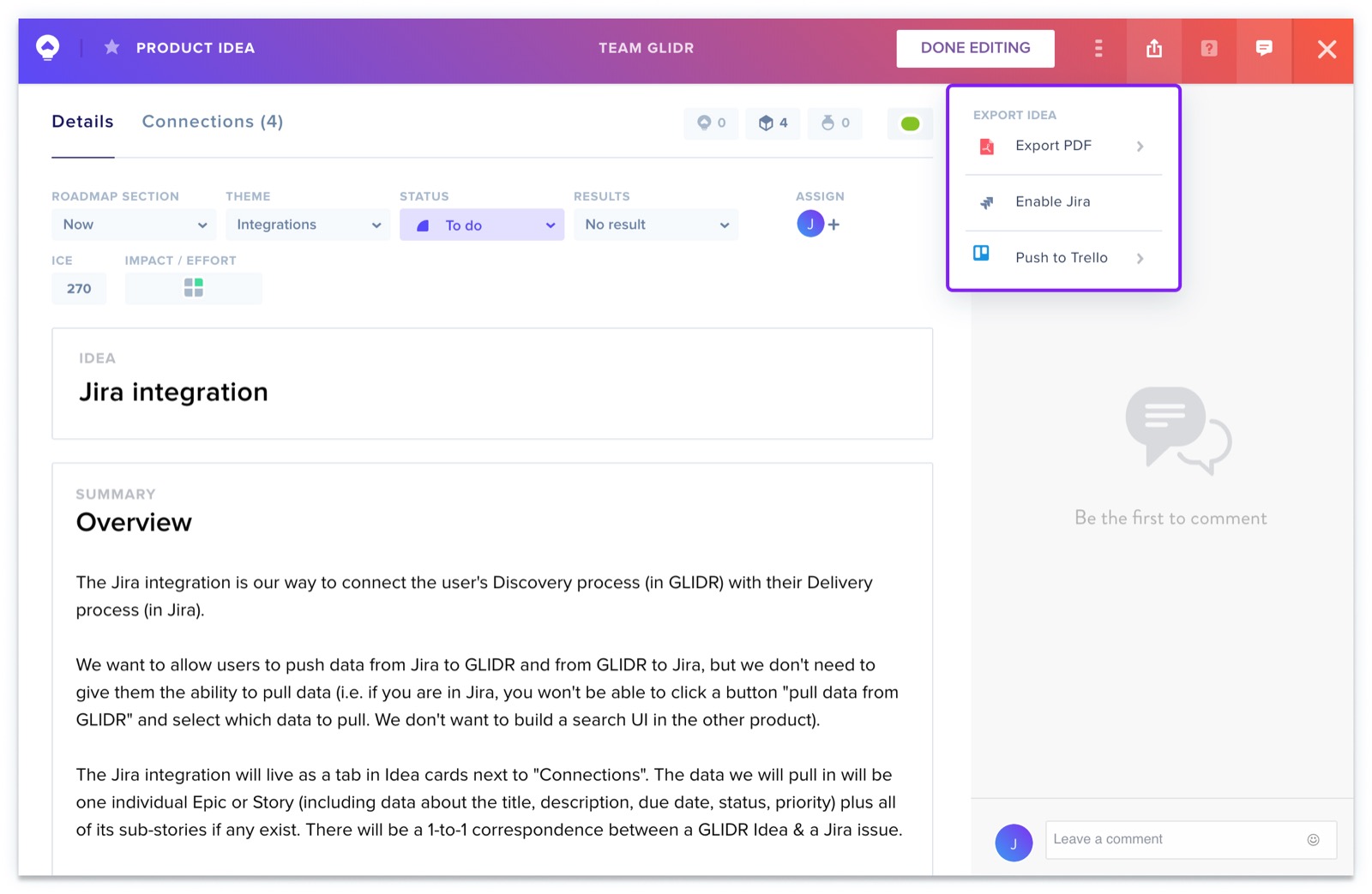
To export an idea to Trello, click the Export icon located in the top-right corner of the idea card and select Push to Trello.
For additional details about utilizing this integration, refer to the Trello Integration Overview.